Network 39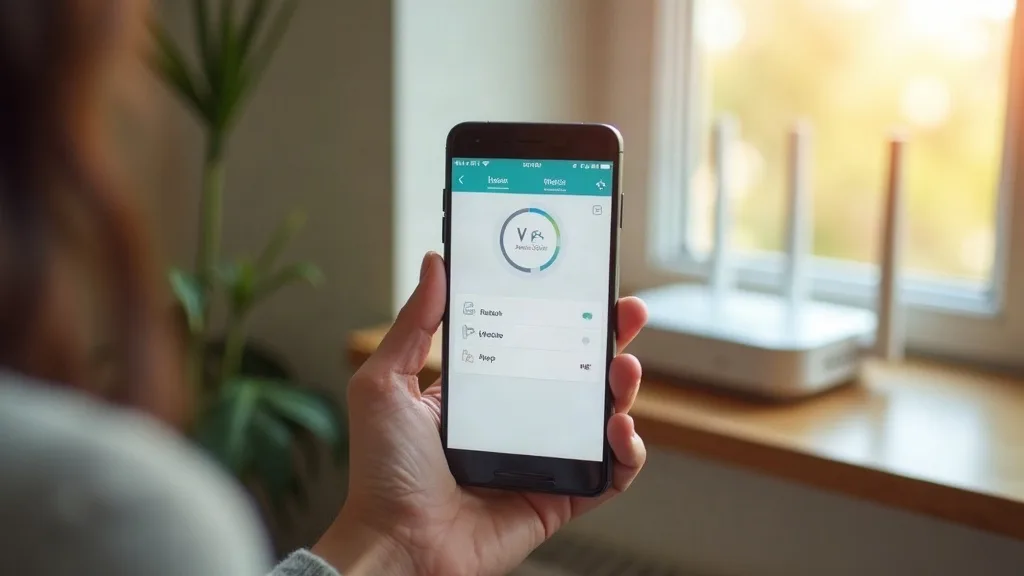
Picture this: you're away from home and the Wi-Fi drops for everyone still using it, or a smart camera stops responding and you know a quick reboot would fix it. So, can I reset my home router remotely? Yes, in most cases, and you don't need to be a network engineer to do it. This guide walks through the three most reliable methods: router apps, ISP apps, and smart plugs that cut power automatically.
Give this about 15 to 30 minutes if you're setting things up for the first time, less if you already have an app installed. Difficulty is low to moderate, mostly down to finding the right settings menu.
What You'll Need
- Your router's make and model (check the sticker on the device)
- The router manufacturer's app, if one exists, installed on your phone
- Your ISP's app, if your router was supplied by them
- A smart plug (optional, but useful as a backup method)
- Wi-Fi or mobile data access to reach the apps remotely
Step 1: Check if Your Router Has Its Own App
Most routers sold in the last few years come with a companion app. This is the first place to look if you're wondering whether you can restart your Wi-Fi router remotely.
- Search your phone's app store for your router's brand name, such as TP-Link, Netgear, Asus, or Linksys.
- Install the app and sign in using the account you created when you first set up the router.
- Look for a "Devices" or "My Network" section that shows your router.
- Find a restart or reboot button, usually tucked under settings or an advanced menu.
- Tap it and confirm. The router will drop offline for one to three minutes before coming back.
If your router was set up with remote access enabled, this should work from anywhere with an internet connection, not just at home. If you've never changed the default settings, it's worth having a look at our router settings explained guide to see what else might be worth adjusting while you're in there.
Step 2: Try Your ISP's App Instead
Many people use the router their internet provider gave them rather than one they bought separately. In that case, the manufacturer's app might not apply, but your ISP's app probably will.
- Open the app from your internet provider, such as BT, Virgin Media, Sky, or similar.
- Log in with your account details.
- Navigate to the "My Hub" or "Router" section.
- Select "Restart Router" or "Reboot Hub."
- Wait for the confirmation message, then give it a few minutes to fully restart.
ISP apps tend to be simpler than manufacturer apps, since they're built for everyday customers rather than tech enthusiasts. This answers the common question of whether you can reset your Wi-Fi router remotely without digging through technical menus.
Step 3: Check for Remote Management Settings
If neither app shows a reboot option, the router's remote management feature might be switched off. This is a security setting, so it's off by default on a lot of devices.
- Connect to your home Wi-Fi while you're still at home.
- Open a browser and type your router's IP address (commonly 192.168.0.1 or 192.168.1.1).
- Log in with your admin username and password.
- Look for "Remote Management," "Remote Access," or "Cloud Access" in the settings menu.
- Turn it on and save changes.
Be cautious here. Leaving remote management on all the time increases the attack surface for your network, so only enable it if you're confident about your password strength. If you want a broader check of your network's defences, our home network security checklist covers 15 steps worth running through.
Step 4: Set Up a Smart Plug as a Backup Method
Apps and remote settings are great until they're not. If your router freezes completely, it might stop responding to software commands altogether. This is where a smart plug comes in handy, since it cuts power at the wall rather than relying on the router itself to respond.
- Choose a smart plug that works over Wi-Fi and has its own app (not one that relies on your home Wi-Fi to function, since that's exactly what you're trying to fix).
- Plug your router into the smart plug, then plug the smart plug into the wall.
- Set up the smart plug using your phone, following the manufacturer's instructions.
- Test it by turning the plug off and on again from your phone while away from home.
- If the router restarts properly, you now have a reliable backup for restarting your Wi-Fi router remotely, even if the apps fail.
Smart plugs with a short cycle delay (switching off, waiting a few seconds, then switching back on) work especially well for this, since routers often need a brief pause to fully power down before restarting cleanly. Plugs from TP-Link Kasa, Amazon Smart Plug, and Meross are commonly used for this kind of task, and most sit in a similar, affordable price range.
If you're building out a wider smart home setup alongside this, it's worth reading up on Zigbee, Z-Wave, Wi-Fi and Thread to understand which protocol suits your other devices best.
Step 5: Schedule Automatic Restarts (Optional)
Some routers slow down over time and benefit from a regular reboot, regardless of whether anything's gone wrong. You can automate this instead of doing it manually.
- In your router or ISP app, check for a "Schedule Reboot" or "Maintenance" option.
- Set a time when nobody's likely to be using the internet, such as 3am.
- Choose a frequency, weekly works well for most households.
- If your router doesn't support scheduling, set up the same thing through your smart plug's app instead, using its scheduling feature to cut power briefly overnight.
This small habit can prevent a lot of the slowdowns that build up over weeks of continuous uptime.
Common Mistakes to Avoid
- Forgetting to enable remote management at home before relying on it while away, since you can't turn it on remotely if it's switched off.
- Using a smart plug that needs your home Wi-Fi to operate, which defeats the purpose if the router itself is the problem.
- Restarting the router too often out of habit, which can interrupt downloads, calls, or anything else running on the network at that moment.
- Assuming a restart fixes everything. If problems keep recurring, it's worth working through diagnosing home network problems rather than just rebooting repeatedly.
- Leaving default admin passwords unchanged while remote management is switched on, which makes your router an easier target.
- Not testing your remote restart method until you actually need it, only to discover it doesn't work when you're away from home.
Conclusion
So, can you reset your home router remotely? In nearly every modern setup, yes, whether through a manufacturer's app, your ISP's app, or a smart plug acting as a physical backup. Setting this up before you need it means one less thing to worry about the next time your Wi-Fi drops while you're out. A few minutes of setup now can save a frustrating call to your ISP later.
FAQ
Can I reset my home router remotely without any extra equipment?
Yes, if your router or ISP provides an app with a restart feature and remote management is switched on. No extra hardware is needed in that case, though a smart plug is a useful backup if the software option ever fails.
What's the difference between restarting and resetting a router?
Restarting simply powers the router off and on again, keeping your settings intact. Resetting wipes the router back to factory settings, which removes your Wi-Fi name, password, and any custom configuration. Most of the time, a restart is all you need.
Will a smart plug damage my router if I use it to cut power regularly?
Routers are designed to handle power cycling, so occasional use through a smart plug shouldn't cause damage. Avoid cutting power constantly or during firmware updates, as that's when interruptions can cause issues.
Why doesn't my router app show a restart option?
This usually means remote management isn't enabled, or your router model doesn't support remote restarts through that particular app. Check your router's settings page directly, or fall back on a smart plug instead.
Is it safe to leave remote management turned on all the time?
It's generally fine if you use a strong admin password and keep your router's firmware updated. If you're not confident about your network's overall security, it's worth working through a full checklist rather than leaving this setting on indefinitely.
Can restarting my router remotely fix slow internet speeds?
Sometimes, yes, especially if the router has been running for weeks without a break. If speeds stay poor after a restart, the issue is more likely with your connection, your ISP, or a specific device rather than the router itself.