Network 39
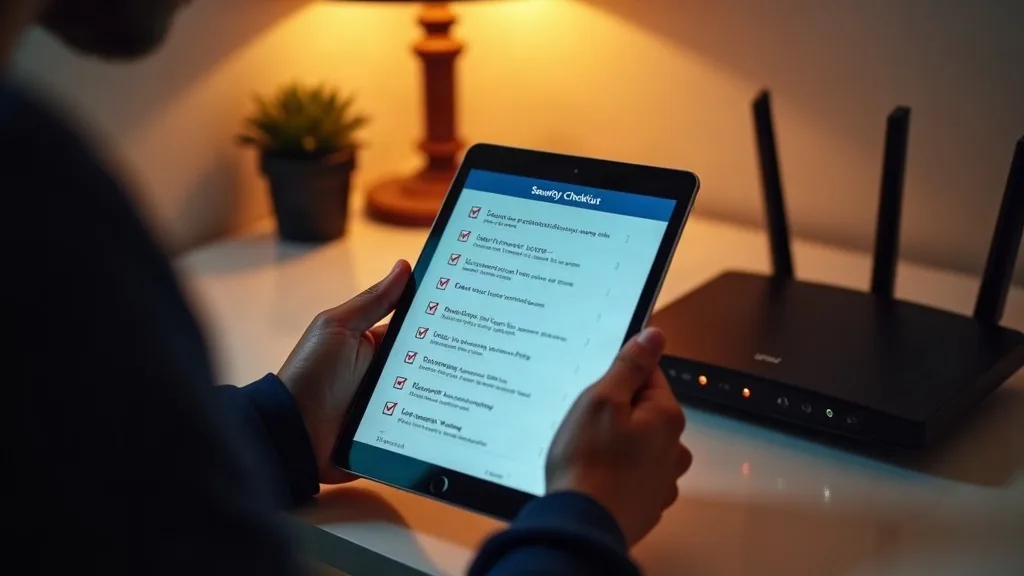
Most of us lock the front door without thinking twice, but leave our home network wide open. Routers, smart plugs, cameras and laptops all share the same digital hallway, and a weak link anywhere lets trouble wander in. This home network security checklist walks through the 15 steps that actually matter, ranked by how much effort they take and how much protection they give you.
You don't need to do everything on day one. Start with the high-impact, low-effort items, then work your way down the list as time allows. Each step below includes a rough effort and impact rating, so you can plan a sensible order of attack.
1. Change the Router's Default Admin Password
Effort: Low. Impact: High.
Every router ships with a default admin username and password, often something like "admin" and "password". These defaults are published online and are the first thing an attacker tries. If you've never changed it, this is your starting point.
Log into your router's settings page (usually by typing its IP address into a browser) and look for administration or system settings. Set a long, unique password that's different from your Wi-Fi password. Write it down somewhere safe, because you'll need it again.
This single step closes one of the most common doors into a home network. It takes a few minutes and makes a real difference.
2. Set a Strong, Unique Wi-Fi Password
Effort: Low. Impact: High.
Your Wi-Fi password protects everything connected to your network, so it deserves more thought than a pet's name and a birth year. Aim for at least 16 characters, mixing words, numbers and symbols in a way you can still remember.
Make sure your router is using WPA3 if it supports it, or WPA2 as a minimum. Avoid WEP entirely, since it's outdated and easy to crack. For a deeper walkthrough of this and related settings, see how to secure your home Wi-Fi network.
Changing this password occasionally, especially after you've shared it with guests or tradespeople, is good practice too.
3. Update Your Router's Firmware
Effort: Low to Medium. Impact: High.
Firmware is the software that runs your router, and like any software, it gets bugs fixed and holes patched over time. Manufacturers release updates to deal with security flaws, but many routers don't install them automatically.
Check your router's admin page for a firmware or software update section. Some routers check automatically and just need you to confirm the install, while others require you to download a file from the manufacturer's website and upload it manually. Either way, it's worth checking every few months.
If your router hasn't had a firmware update in years, or the manufacturer has stopped supporting it, that's a sign it might be time to look at how to choose a router with a plain-English buying guide.
4. Turn Off UPnP Unless You Need It
Effort: Low. Impact: Medium to High.
UPnP (Universal Plug and Play) lets devices on your network automatically open ports on your router without asking you first. It's convenient for things like games consoles and some smart home devices, but it also means any device, including a compromised one, can poke holes in your firewall.
Unless you specifically rely on UPnP for a service you use often, turn it off in your router settings. If something stops working afterwards, you can switch it back on and set up that specific port forward manually instead.
This is one of those settings most people never look at, yet it can quietly weaken your whole setup.
5. Disable Remote Management
Effort: Low. Impact: High.
Remote management lets you access your router's admin panel from outside your home network, which sounds handy until you realise it also gives anyone on the internet a way to try their luck. Most people never need this feature.
Look for "remote management", "remote access" or "WAN access" in your router settings and switch it off if it's enabled. If you genuinely need remote access for troubleshooting, use a VPN instead of leaving the admin panel exposed directly to the internet.
This is a quick check that closes a door you probably didn't know was open.
6. Set Up a Separate Guest Network
Effort: Medium. Impact: High.
When friends or family visit and ask for your Wi-Fi password, handing over access to your main network means their phone, laptop or whatever they're carrying is now sitting alongside your personal devices. A guest network keeps visitors on a separate, isolated connection.
Most modern routers and mesh systems support this as a built-in feature, usually under a wireless or guest settings menu. For a full walkthrough, see how to set up a guest Wi-Fi network.
This is also useful for one-off devices you don't fully trust, like a smart TV at a rental property or a visitor's laptop you know nothing about.
7. Isolate Smart Home and IoT Devices
Effort: Medium. Impact: High.
Smart plugs, cameras, doorbells and speakers are often the weakest links in a home network. Many of them receive infrequent updates and have simple, sometimes hardcoded, security. Keeping them separate from your laptops and phones limits the damage if one gets compromised.
The easiest way to do this without buying new equipment is to put IoT devices on your guest network or a dedicated VLAN if your router supports it. Some mesh systems make this especially straightforward through their apps. If you're shopping for new gear and isolation is a priority, it's worth checking the best mesh Wi-Fi systems for UK homes, since many now include simple IoT network options.
Even a basic separation, like putting smart devices on the guest SSID, meaningfully reduces your risk.
8. Turn On Automatic Updates for All Devices
Effort: Low. Impact: High.
Phones, laptops, tablets and smart TVs all receive security patches regularly, but only if updates are actually installed. Automatic updates mean you're protected without having to remember to check.
Go through your devices one by one and confirm automatic updates are switched on for the operating system and any apps that support it. This includes things people forget, like smart speakers, streaming boxes and even some printers.
It's a bit tedious to set up once, but after that it runs quietly in the background and keeps your devices patched against known vulnerabilities.
9. Enable Two-Factor Authentication on Key Accounts
Effort: Medium. Impact: High.
A home network security checklist isn't just about hardware. Your email, cloud storage, banking and router manufacturer accounts all deserve two-factor authentication (2FA), because a stolen password alone shouldn't be enough to get someone in.
Start with your email account, since it's often the key to resetting everything else, then move to banking, cloud storage and any router or smart home manufacturer accounts you use. Use an authenticator app rather than SMS where possible, since text messages can be intercepted in some circumstances.
This step takes a bit of setup time across multiple accounts, but it's one of the strongest protections available against stolen passwords.
10. Use a Password Manager
Effort: Medium. Impact: High.
Reusing passwords across accounts means one leaked password can unlock several of your accounts at once. A password manager generates and stores unique, complex passwords for everything, so you only need to remember one master password.
Most password managers also flag weak or reused passwords across your accounts, which makes cleaning up old habits much easier. Many offer free tiers that cover the basics perfectly well for home use.
It takes an afternoon to set up properly, going through your most important accounts first, but it removes one of the biggest weaknesses in most people's security.
11. Review Connected Devices Regularly
Effort: Low. Impact: Medium.
Most routers and mesh apps show a list of devices currently connected to your network. Taking a few minutes every month or so to scan through this list can reveal devices you don't recognise, or old gadgets you forgot were still connected.
If you spot something unfamiliar, you can usually block it directly from the app or router interface. This also serves as a sanity check on which devices actually need network access and which ones you could remove entirely.
It's a small habit, but it catches problems early rather than months down the line.
12. Segment Your Network with VLANs or Multiple Networks
Effort: High. Impact: High.
For people with a lot of devices, especially those running a home lab, splitting your network into separate segments gives much tighter control. Work devices, smart home gadgets, guests and personal devices can each sit on their own segment, limiting what can talk to what.
This usually means using a router or access point that supports VLANs, plus some initial configuration to define the segments and rules between them. It's more technical than most items on this checklist, so it's not for everyone, but it's one of the most effective ways to contain a breach if one device does get compromised.
If you're building out a more serious home lab setup, a capable mini PC running software like pfSense or OPNsense can handle this segmentation well.
13. Switch Off Features You Don't Use
Effort: Low. Impact: Medium.
WPS, Telnet access, FTP services and various other router features sometimes sit switched on by default, even if you never use them. Each one is a small potential entry point that serves no purpose for most households.
Go through your router's settings menu and switch off anything you don't actively rely on. WPS in particular has known weaknesses and is rarely worth the convenience it offers.
This is a tidy-up task rather than a single big fix, but trimming unnecessary features reduces your overall exposure.
14. Choose the Right Wi-Fi Band and Frequency Settings
Effort: Low. Impact: Medium.
This one's more about performance than pure security, but it matters for your overall setup. Running devices on the wrong band can push you towards weaker, older protocols or force compromises in security settings to maintain compatibility.
Understanding the difference matters here, and our guide on 2.4GHz vs 5GHz Wi-Fi explains which devices should use which band. Getting this right also tends to make your network faster and more stable, which is a nice side benefit.
If you're using powerline adapters or older networking gear alongside Wi-Fi, it's also worth checking whether powerline adapters are working well for your setup, since outdated extenders can sometimes carry their own security quirks.
15. Back Up Your Router Configuration and Document Your Setup
Effort: Low. Impact: Medium.
Once you've gone through all the steps above, it's worth saving a backup of your router's configuration and writing down what you've changed. Most routers have a backup option in their settings menu that saves a configuration file you can restore from later.
Keep a simple note of your admin password, Wi-Fi password, guest network details and any VLANs or custom settings somewhere secure, like a password manager. This saves a lot of frustration if your router resets or you need to replace it.
It's a small final step, but it means all the work you've put into securing your network doesn't get lost the next time something goes wrong.
Conclusion
Working through a home network security checklist doesn't need to happen all in one weekend. Start with the quick, high-impact changes like your router password, firmware updates and two-factor authentication, then move on to the more involved steps like network segmentation when you have time.
Security isn't a one-off job either. Revisiting this list every few months, especially after adding new devices, keeps your home network in good shape without much ongoing effort.
FAQ
How often should I check my home network security settings?
A quick review every few months is reasonable for most households, with a closer look whenever you add a new device or notice something behaving oddly.
Do I need to do all 15 steps to be safe?
No. The early, low-effort items give you most of the protection. Later, more technical steps like VLAN segmentation add extra depth but aren't essential for every household.
Is a guest network really necessary if I trust my visitors?
It's less about trust and more about containment. A guest device could be infected without the owner knowing, and keeping it separate protects your main devices either way.
What's the single most important step on this list?
Changing default router admin credentials and keeping firmware updated together make the biggest difference, since they protect the device that controls everything else.
Can I secure IoT devices without buying a new router?
Yes, in most cases. Putting them on your existing guest network is an easy way to isolate them without any new hardware.
Does a password manager make my network less secure if it's cloud based?
Reputable password managers use strong encryption, so your data stays protected even if their servers were ever breached. The security benefit of unique passwords far outweighs the small risk involved.