Network 39
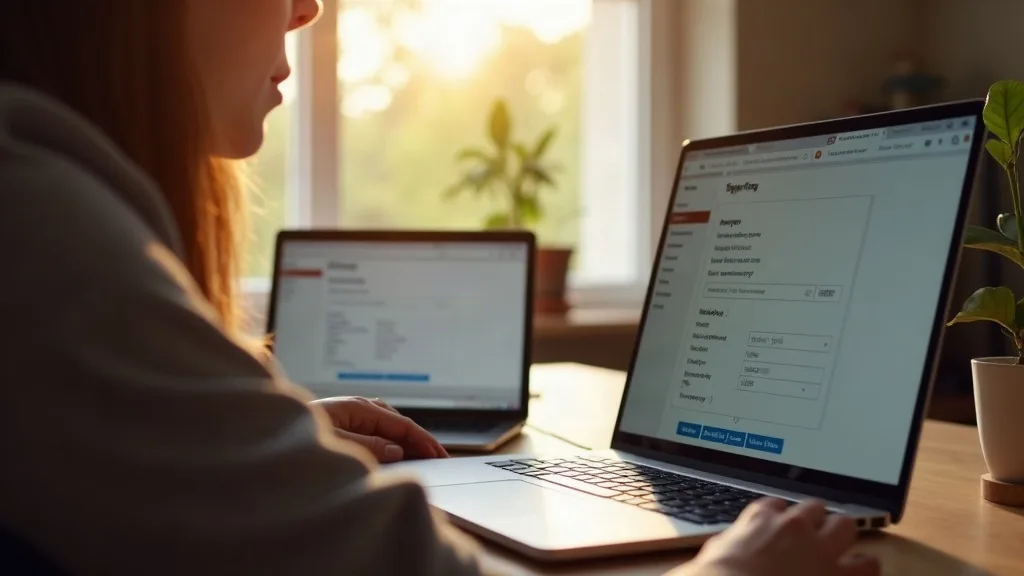
Most people only open their router's admin page once: on the day something stops working. The rest of the time, that little settings page sits there, full of toggles with names like "WMM" and "NAT filtering", quietly doing its job and intimidating anyone who peeks inside.
This guide breaks down router settings explained in plain English, so you know exactly which ones are worth touching, which ones to leave well alone, and why. By the end, you'll be able to open your router's settings without that slightly nervous feeling that you're about to break the internet.
Key Takeaways
- Most default router settings are perfectly fine, so you don't need to change everything you see.
- Renaming your Wi-Fi network and setting a strong password are the two changes that matter most for everyday users.
- Band steering and automatic channel selection usually work better left alone, unless you're having specific problems.
- QoS can help if video calls or gaming suffer when others are streaming, but it rarely needs fine-tuning.
- WPS and UPnP are worth understanding, since one is a security risk and the other is often harmless but sometimes useful.
- Firmware updates are one setting that genuinely should not be ignored.
- If your router's interface feels hopelessly outdated, that's often a sign it's time to consider a new one.
SSID: Naming Your Network
Your SSID is just the name of your Wi-Fi network, the one you pick from the list on your phone or laptop. Routers usually ship with something generic like "BT-4F2A" or "VodafoneConnect-XY12", which tells anyone nearby what model or provider you're using.
It's worth changing this to something unique, though not for dramatic security reasons. A custom name mostly helps you tell your network apart from your neighbours', and makes it easier to spot if a device has accidentally connected to the wrong one. Avoid using your house number or surname, just as a sensible habit, since it gives away more than you need to share with anyone scanning for networks nearby.
If your router broadcasts separate 2.4GHz and 5GHz networks, you can either give them different names or the same one. Using the same SSID lets modern routers handle band steering automatically, which we'll cover next.
Band Steering and the 2.4GHz vs 5GHz Question
Band steering is the feature that decides whether your device connects to the 2.4GHz or 5GHz band, without you having to choose manually. It sounds simple, but it causes more confusion than almost any other router setting.
In short: 2.4GHz reaches further but is slower and more crowded, while 5GHz is faster but doesn't travel as well through walls. If you want the full breakdown of when each one makes sense, this comparison of 2.4GHz vs 5GHz Wi-Fi covers it well.
For most households, leaving band steering switched on and letting the router decide is the right call. It's designed to put each device on the band that suits it best at that moment, and modern routers are generally good at this. The exception is if you have an older device, like a smart plug or a printer, that only supports 2.4GHz and keeps struggling to connect. In that case, giving the two bands separate network names lets you connect that device manually to the one it actually needs.
Wi-Fi Channels: Usually Best Left on Automatic
Each Wi-Fi band is split into channels, a bit like lanes on a motorway. In crowded areas, like a block of flats, many routers end up broadcasting on the same channel, which can slow things down for everyone.
Most routers now choose channels automatically, scanning for the quietest option and switching when needed. This works well in the vast majority of homes, and manually picking a channel is rarely necessary unless you've done a proper Wi-Fi survey and found a persistent problem.
If you do want to experiment, channels 1, 6 and 11 are the standard non-overlapping choices on 2.4GHz, and are worth trying if you suspect interference from neighbouring networks. On 5GHz, there are more channels available, so congestion is less of an issue. Unless you're genuinely troubleshooting dropouts, it's safe to leave this on automatic and move on.
QoS: Giving Priority to What Matters
QoS, or Quality of Service, lets your router decide which traffic gets priority when your connection is busy. If someone in the house is downloading a huge file while you're on a video call, QoS can make sure your call stays smooth instead of freezing.
Most routers offer a simple version of this, sometimes as a toggle, sometimes with presets like "gaming" or "streaming". Turning it on and choosing a sensible preset is usually enough. You don't need to manually assign priority to every device unless you have a specific, recurring problem, like calls dropping every time someone starts a Netflix marathon.
Where QoS tends to help most is in busy, multi-person households with a single internet connection to share. If you're regularly hitting bandwidth limits, it might also be worth checking whether your current router is actually up to the job. This guide on when to upgrade from your ISP router explains the signs to look out for.
WPS: Convenient, But Worth Switching Off
WPS, or Wi-Fi Protected Setup, is that button on your router that lets you connect a device by pressing it rather than typing a password. It's handy for things like smart speakers or printers that have fiddly or no keyboards.
The downside is that WPS has known security weaknesses, particularly the PIN-based version, which can be vulnerable to being guessed by someone determined enough. For most households, this is a low-risk scenario, but it's still an easy thing to switch off since you'll rarely need it once your main devices are set up.
If you do use WPS occasionally for new smart home gadgets, there's no major harm in leaving it on, as long as your router is from a reasonably recent generation and kept updated. If you're setting up a lot of smart home devices at once, you might find it easier to use it temporarily and then turn it off again afterwards.
UPnP: Handy for Some Devices, Risky for Others
UPnP, or Universal Plug and Play, allows devices on your network to automatically open the ports they need, without you having to configure anything manually. Games consoles, some smart home hubs and certain apps rely on it to work properly straight out of the box.
The trade-off is that UPnP lets devices make these changes without asking you each time, which in theory could be exploited by something malicious on your network. In practice, for a typical home with a handful of trusted devices, this risk is quite small. It becomes more relevant if you have lots of unfamiliar or poorly supported smart gadgets connected.
A reasonable approach is to leave UPnP on if you're using devices that clearly rely on it, like a console for online gaming, and switch it off if you're not sure anything actually needs it. If something stops working properly after you disable it, like voice chat in a game, that's usually your answer, and you can turn it back on.
Firmware Updates: The One You Shouldn't Skip
Firmware is the software that runs your router, and keeping it updated is genuinely one of the most important settings-related habits you can have. Updates often fix security vulnerabilities, improve stability, and sometimes add new features like better QoS controls or improved band steering.
Many modern routers update automatically in the background, which is the easiest option if it's available. Others require you to check manually from within the admin page, usually under a section called "Firmware" or "System". It's worth checking every few months if your router doesn't do this itself.
If you find your router hasn't received an update in a couple of years, or the manufacturer's support page shows nothing recent, that's a reasonable signal it might be getting old. Combined with other frustrations, like weak Wi-Fi coverage or missing features, it might be worth reading our guide on how to choose a router to see what a newer model could offer.
Guest Networks and Device Isolation
A guest network creates a separate Wi-Fi for visitors, keeping them off your main network without you having to share your actual password. It's a simple setting to turn on, and most routers make it painless.
This is worth switching on if you regularly have visitors, or if you want to keep smart home devices separate from your main laptops and phones. Some routers also offer device isolation within the guest network, stopping connected guest devices from seeing each other, which is a sensible extra layer for shared houses or small offices.
If you're running a lot of smart home kit, a mesh system can make managing separate networks and device groups much easier. Our guide to the best mesh Wi-Fi systems for UK homes is a good place to start if you're considering a move in that direction.
When Your Router's Settings Are Part of a Bigger Problem
Sometimes, no amount of toggling settings will fix a genuinely patchy Wi-Fi signal or an interface that feels stuck a decade in the past. If your router struggles to cover your whole home, a single box with a few settings tweaks isn't going to solve a coverage problem.
It's worth figuring out whether you actually need a mesh system or whether a simple range extender would do the job. This comparison of mesh Wi-Fi vs range extenders explains the difference clearly. And if you're wondering whether newer standards are worth chasing at all, What Is Wi-Fi 7 and Do You Need It? is a useful read before you spend money on the latest thing.
Conclusion
Having router settings explained properly usually reveals something reassuring: most of them don't need touching. Rename your network, set a strong password, leave band steering and channel selection on automatic, use QoS if your household is competing for bandwidth, and keep an eye on firmware updates. WPS and UPnP are the two worth a bit more thought, but neither demands urgent action in most homes.
If you've read through this and realised your router's interface looks ancient or missing half these features entirely, that's a good sign it might be time for an upgrade rather than another settings tweak.
FAQ
Do I need to change my router's default password?
Yes, this is one of the few changes worth making straight away. Default passwords are often printed on the router itself or follow predictable patterns, so setting your own is a quick and meaningful security improvement.
Will changing my SSID disconnect my devices?
Yes, briefly. Any device connected to the network will drop off and need to reconnect using the new name and password, which takes a couple of minutes to sort out on each device.
Should I turn off the 2.4GHz band entirely?
It's not usually worth it. Some older or cheaper smart home devices only support 2.4GHz, so turning it off completely can leave them unable to connect at all.
Is it safe to leave UPnP on all the time?
For most home networks with trusted devices, yes, it's a reasonable choice. If you're concerned about it or have a lot of unfamiliar devices connected, turning it off and only enabling it when needed is a sensible middle ground.
How often should I update my router's firmware?
Checking every two to three months is a reasonable habit if your router doesn't update automatically. If a critical security update is released, it's worth applying it as soon as you notice it.
What's the difference between QoS and just getting a faster connection?
QoS manages how your existing bandwidth is shared between devices, while a faster connection increases the total amount available. If you're regularly running out of bandwidth rather than just mismanaging it, an upgrade might help more than QoS alone.
Can I damage my router by changing settings?
It's very unlikely with normal settings like SSID, QoS or band steering. Most routers let you reset to factory defaults if something goes wrong, so it's hard to cause lasting damage through the admin page alone.