Network 39
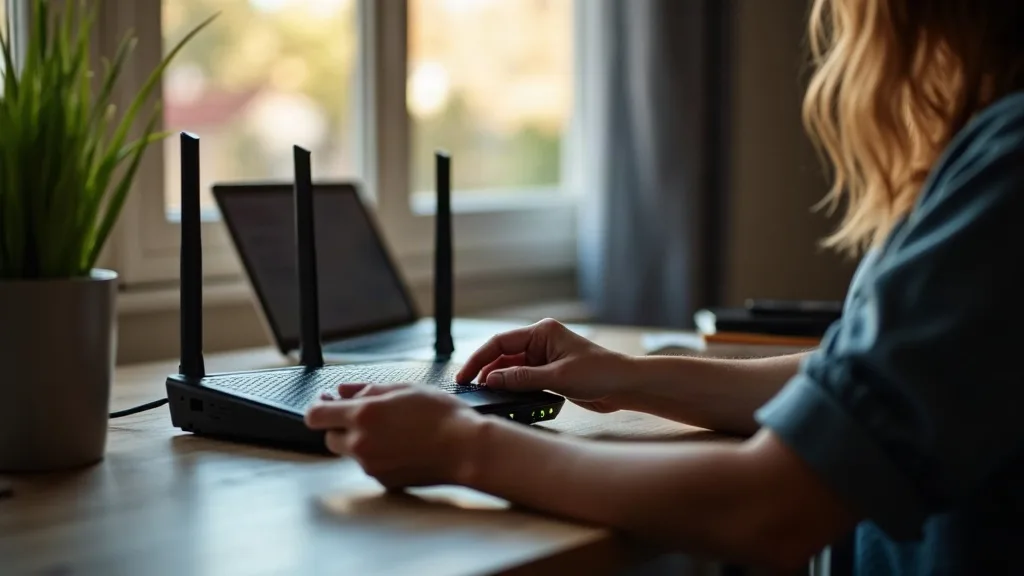
Lag spikes during a ranked match or a raid boss fight usually come down to one of three things: your connection, your router, or your Wi-Fi signal. The good news is that most of these problems are fixable without buying new hardware. This guide walks through the steps that genuinely reduce ping gaming, and separates them from the myths you've probably seen repeated in forums and comment sections.
Give yourself about an hour to work through everything here, including some testing time. None of it requires technical expertise, just a bit of patience and a willingness to plug in a cable.
What You'll Need
- Access to your router's admin settings (usually via a browser or app)
- An Ethernet cable, if you want to test a wired connection
- A device to run speed and latency tests (laptop, phone or PC)
- About 15 to 20 minutes free from other heavy internet use, for testing purposes
Step 1: Understand What's Actually Causing Your Lag
Before changing anything, it helps to know what you're dealing with. There are three separate issues that all feel like "lag" but need different fixes.
- Ping (latency) is the time it takes data to travel to a game server and back, measured in milliseconds. Lower is better.
- Jitter is how much your ping varies from one moment to the next. Stable ping at 40ms is better for gaming than ping that swings between 20ms and 150ms.
- Packet loss is when data goes missing entirely, causing rubber-banding or freezing rather than just slowdown.
Most "random lag spikes" are actually jitter or packet loss, not high ping on its own. Keeping this distinction in mind will help you work out which fix below applies to your situation.
Step 2: Test Your Current Connection Properly
You can't fix what you haven't measured. Run a proper speed and latency test before making changes, so you have something to compare against later.
- Close other apps and devices using the connection, or at least note what's running.
- Use a test that reports ping and jitter, not just download speed.
- Run the test at least three times, at different times of day if lag is intermittent.
For a step-by-step walkthrough of doing this properly, see how to run accurate broadband speed tests. Write down your baseline ping and jitter figures so you know whether later changes actually help.
Step 3: Connect With Ethernet Where You Can
This is the single biggest improvement most people can make. Wi-Fi adds variability that a cable simply doesn't have.
- Run an Ethernet cable from your router or a nearby switch to your gaming device.
- If the device is a console, use its built-in Ethernet port rather than a USB adapter where possible.
- Re-run your ping and jitter test and compare it to your Step 2 baseline.
Wired connections typically cut jitter noticeably, even when the download speed looks similar to Wi-Fi. If running a cable isn't practical because of distance or wall layout, a powerline adapter can be a reasonable middle ground. Read do powerline adapters work? Pros, cons and setup before buying one, since performance varies a lot depending on your home's wiring.
Step 4: Choose the Right Wi-Fi Band if Wired Isn't an Option
If Ethernet genuinely isn't possible, band choice matters more than most people realise.
- Open your router settings and check whether your gaming device is connected to the 2.4GHz or 5GHz band.
- Switch to 5GHz if you're within a room or two of the router. It has less interference and generally lower latency.
- Stick with 2.4GHz only if you're far from the router and the signal on 5GHz is weak, since a strong 2.4GHz connection beats a patchy 5GHz one.
The trade-offs between the two bands go deeper than just range, so it's worth reading 2.4GHz vs 5GHz Wi-Fi: which should you use? if you're unsure which fits your setup.
Step 5: Test for Bufferbloat and Fix It
Bufferbloat is one of the most underrated causes of gaming lag. It happens when your router queues up too much data, so everything (including your game traffic) gets delayed behind large downloads or uploads.
- Search for a bufferbloat test tool online and run it while your connection is otherwise idle.
- Run the same test while something else is downloading or uploading heavily in the background.
- Check the grade or rating given for latency under load. A big jump from "A" to "D" or "F" means bufferbloat is a real problem on your connection.
- If your router supports Smart Queue Management (SQM) or similar, enable it. This caps your bandwidth slightly below the maximum but keeps latency stable under load.
This single setting often does more for consistent ping than anything else on this list, yet it's rarely mentioned outside of more technical forums.
Step 6: Set Up Quality of Service (QoS) for Gaming Traffic
QoS lets your router prioritise gaming traffic over less time-sensitive stuff like downloads or video streaming.
- Log into your router's admin panel and find the QoS or Traffic Prioritisation section.
- Add your gaming device (console, PC or specific app) as a high-priority item, either by device or by port number for the game you play.
- Save the settings and restart the router if prompted.
- Test again while another device in the house is streaming or downloading, to see if your ping stays stable.
QoS won't lower your baseline ping, since that's mostly determined by distance to the server and your ISP's routing. What it will do is stop other household traffic from causing spikes during your gaming sessions.
Step 7: Choose the Closest Server and Check Your Router's Health
Sometimes the fix has nothing to do with your home network at all.
- In the game's settings, manually select the server region closest to you rather than relying on auto-detect, which sometimes picks a less optimal one.
- Restart your router if it's been running for weeks without a reboot, since memory leaks on cheaper routers can cause gradual slowdowns.
- Check for firmware updates on your router, as these sometimes include latency or stability fixes.
- If your Wi-Fi coverage is patchy around the house, consider whether a mesh system would help. See best mesh Wi-Fi systems for UK homes for options if your signal problems extend beyond just the gaming room.
If general Wi-Fi performance feels off in other ways too, not just during gaming, it's worth reading why is my Wi-Fi slow? A complete guide to fixing it for a broader troubleshooting approach.
Common Mistakes to Avoid
- Buying a "gaming router" expecting it to fix a slow ISP connection. No router can lower latency below what your internet provider's network allows between you and the game server.
- Assuming more Mbps means lower ping. Download speed and latency are different things. A 500Mbps connection can still have worse ping than a 100Mbps one if the routing is poor.
- Ignoring jitter in favour of chasing a lower average ping number. Consistent ping at a slightly higher number often feels smoother than a low average with big swings.
- Using a VPN hoping it will "optimise" your route. Most VPNs add an extra hop and increase latency, despite marketing claims about gaming VPNs reducing ping.
- Blaming Wi-Fi for every spike without testing wired first. If you haven't tried Ethernet, you don't actually know whether Wi-Fi is the problem.
- Forgetting to re-test after changes. Without a baseline from Step 2, you're just guessing whether something helped.
Conclusion
Reducing ping and lag for gaming comes down to a handful of genuine fixes: testing properly, using a wired connection where you can, picking the right Wi-Fi band, sorting out bufferbloat, and setting up QoS so other devices don't steal bandwidth at the wrong moment. Skip the myths about gaming routers and VPNs magically lowering latency, and focus on the steps above instead. If you work through them in order, you'll end up with a much clearer picture of what's actually causing the lag, and a connection that's noticeably more stable for it.
FAQ
Will a gaming router actually lower my ping?
Not on its own. A gaming router can help with QoS and bufferbloat management, but it can't reduce the physical distance your data travels to reach a game server. If your ISP connection itself has high latency, no router will fix that.
Does Ethernet really make that much difference over Wi-Fi?
Yes, mainly through reduced jitter rather than a dramatically lower average ping. Wi-Fi introduces small delays from interference, retransmissions and distance that a cable avoids almost entirely.
What is a good ping for online gaming?
Under 30ms is excellent, 30 to 60ms is generally fine for most games, and anything above 100ms starts to feel noticeably delayed in fast-paced titles. Turn-based or slower games are more forgiving of higher ping.
Can my internet plan be the problem even if speeds test fine?
Yes. A fast download speed doesn't guarantee low latency, since that depends more on routing and network congestion than raw bandwidth. This is why checking jitter and bufferbloat matters as much as checking Mbps.
Should I turn off other devices on my network while gaming?
It helps, but it's a workaround rather than a fix. Setting up QoS or SQM properly means you shouldn't need to unplug everything else just to get a stable connection.
Is my home lab or NAS causing lag spikes?
It can, if it's doing large backups or transfers during your gaming sessions and your router doesn't have proper QoS set up. If you're building out a more serious home network setup, it's worth reading home lab for beginners: where to start to understand how to keep bandwidth-heavy tasks from interfering with everyday use.