Network 39

Ever noticed your internet crawling along for no obvious reason and wondered who's actually using it? Checking who is connected to my wifi is one of the quickest ways to spot a slow-down caused by extra devices, or worse, someone you don't recognise sitting on your network. This guide shows you three ways to see your connected devices, how to tell a stranger's phone from your smart plug, and what to do once you've found an intruder. Expect to spend about 15 to 20 minutes on this, and you won't need any technical skill beyond typing an address into a browser.

What You'll Need
- Access to your router's admin page or app (usually a username and password, often printed on the router itself)
- A smartphone or laptop connected to the same Wi-Fi network
- Optionally, a free network scanner app such as Fing
- A list of your own devices, roughly, so you can spot anything unfamiliar
Step 1: Check Through Your Router's App
Most routers sold in the last few years come with a companion app, whether that's from BT, Sky, Virgin Media, TP-Link, Netgear or another brand.
- Open the app and sign in with your router account details.
- Look for a section called "Devices", "Connected Devices" or "My Network".
- You should see a list with device names, how they're connected (Wi-Fi or Ethernet), and sometimes how much data they're using.
Apps tend to be the easiest option because they show friendly names rather than technical jargon. If your router didn't come with one, check the manufacturer's website or app store listing, most modern models have a free companion app even if it wasn't advertised in the box.
Step 2: Check Through the Router's Admin Page
If you don't fancy installing an app, or your router app feels limited, the web-based admin page usually shows more detail.
- Open a browser on a device connected to your Wi-Fi.
- Type your router's IP address into the address bar. Common ones are 192.168.1.1 or 192.168.0.1, though yours might differ. It's often printed on a sticker on the router itself.
- Log in with the admin username and password (not your Wi-Fi password, this is a separate account, again often on that same sticker).
- Look for a menu labelled "Attached Devices", "Device List", "DHCP Clients" or "Network Map".
- Note down the device names, IP addresses and MAC addresses shown.
MAC addresses are unique codes assigned to every device's network hardware, and they're useful for identifying devices later, even if the name shown is unhelpful (plenty of devices just show up as "Unknown" or a string of numbers).
If you're not confident navigating your router's settings, our guide on how to secure your home Wi-Fi network covers the basics of logging in and finding your way around, alongside other settings worth checking while you're there.
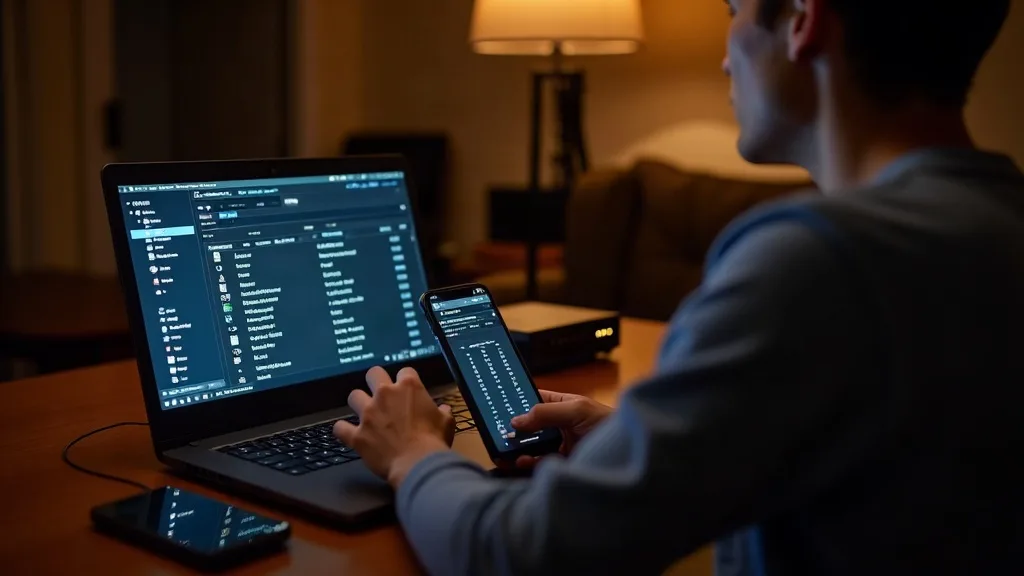
Step 3: Use a Network Scanner App for a Second Opinion
Router lists aren't always accurate or up to date, so a dedicated scanner app can fill in the gaps.
- Download a reputable app such as Fing (available for iOS and Android, and free for basic use).
- Connect your phone to the Wi-Fi network you want to check.
- Open the app and run a scan, this usually takes less than a minute.
- Review the list of devices, which typically includes manufacturer names (like "Samsung Electronics" or "Apple Inc.") pulled from the MAC address.
This extra manufacturer detail often makes guessing games much easier. A device labelled "Espressif" is almost certainly a smart plug or similar IoT gadget, while "Apple Inc." narrows things down to an iPhone, iPad or Mac.
Step 4: Identify Which Devices Are Yours
Once you've got a list, from the app, the admin page, or both, it's time to work out what's what.
- Count how many devices you expect: phones, laptops, tablets, smart TVs, speakers, printers, smart plugs, cameras, consoles, and anything else in the house.
- Match device names on the list to your own kit. Many show up with obvious names like "Johns-iPhone" or "LivingRoomTV".
- For anything unclear, temporarily turn off its Wi-Fi or unplug it, then refresh the device list. If it disappears, you've found it.
- Cross-reference MAC addresses with manufacturer lookup tools if the name alone isn't enough. Searching the first six characters of a MAC address online usually reveals the manufacturer.
Smart home gadgets are often the biggest source of confusion here, since fridges, doorbells, light bulbs and plugs rarely bother with a sensible name. If your home is full of these, it might be worth reading up on home lab for beginners if you want more control and visibility over everything connected to your network.
Step 5: Remove Any Unknown or Unwanted Devices
If you've found a device you can't account for, don't panic, but do act.
- Change your Wi-Fi password immediately. This is the fastest way to kick off anyone who shouldn't be there, since every device will need the new password to reconnect.
- Log back into the router admin page and check for a "block device" or "device access control" option, which lets you ban specific MAC addresses even after a password change.
- Update your router's firmware if an update is available, older firmware sometimes has known security holes.
- Turn off remote management and WPS if you're not using them, both can be exploited to gain access without your password.
Changing the password is usually enough on its own, but combining it with blocking and a firmware update covers more bases.
Step 6: Prevent Intruders From Returning
Once the immediate problem is sorted, a few changes make it much harder for anyone to sneak back on.
- Use WPA3 encryption if your router supports it, or WPA2 at a minimum. Avoid older WEP or open networks entirely.
- Set a strong, unique Wi-Fi password, not the default one printed on the router.
- Set up a separate guest network for visitors and smart devices, so your main network stays private. Our guide to setting up a guest Wi-Fi network walks through this step by step.
- Disable WPS (Wi-Fi Protected Setup) if it's switched on, as it can be a weak point for attackers.
- Keep router firmware updated, most apps will notify you when updates are available.
For a broader rundown of security settings worth checking, our full guide on how to secure your home Wi-Fi network is a good next stop.
Common Mistakes to Avoid
- Assuming every unnamed device is an intruder, smart plugs, cameras and bulbs often show up looking suspicious but are just your own gadgets.
- Only checking once, run a check every month or so, especially if you've had visitors or bought new smart devices.
- Changing the Wi-Fi password but forgetting to also check for devices with saved admin access, which can sometimes let someone back in.
- Ignoring firmware updates, which often patch the exact vulnerabilities intruders rely on.
- Mixing up the Wi-Fi password with the router admin password, they're not the same thing and need separate attention.
- Putting all devices, including guests and smart gadgets, on the same network as your personal laptop or NAS, which increases the risk if one device is compromised.
Conclusion
Checking who is connected to my wifi doesn't need to be a regular source of anxiety once you know where to look. Between the router app, the admin page and a quick scanner app, you've got three reliable ways to see exactly what's using your connection. If you do spot something unexpected, a password change, a firmware update and a properly set-up guest network will usually sort it for good. Make it a habit to glance at your device list every month or so, it takes a couple of minutes and saves a lot of hassle later.
FAQ
How do I know if someone is stealing my Wi-Fi?
Look for devices you don't recognise in your router's device list, combined with slower than usual speeds or unexplained spikes in data use. Running a scanner app alongside the router list helps confirm whether something odd is genuinely there.
What's the difference between the router app and the admin page?
The app is usually simpler and shows friendly device names, while the web-based admin page tends to offer more detail and extra controls, like blocking specific devices. Using both gives you a fuller picture.
Can someone connect to my Wi-Fi without the password?
It's unlikely unless your network has weak security settings, like WPS left switched on or an outdated encryption type. Using WPA2 or WPA3 with a strong password makes this very difficult.
Will changing my Wi-Fi password remove connected devices?
Yes, changing the password disconnects every device, and they'll all need the new password to reconnect. This is the quickest way to remove an unwanted device immediately.
Why does my router show more devices than I own?
Smart home gadgets, guest devices, and anything with a Wi-Fi chip (like a smart TV, games console or doorbell) all count as separate devices. It's worth keeping a rough list of what you own so new entries stand out.
Should I use a guest network to keep things more secure?
Yes, a guest network keeps visitors and smart devices separate from your main devices, which limits what an intruder could access even if they got in. It's a simple step that makes a real difference to your overall security.