Network 39
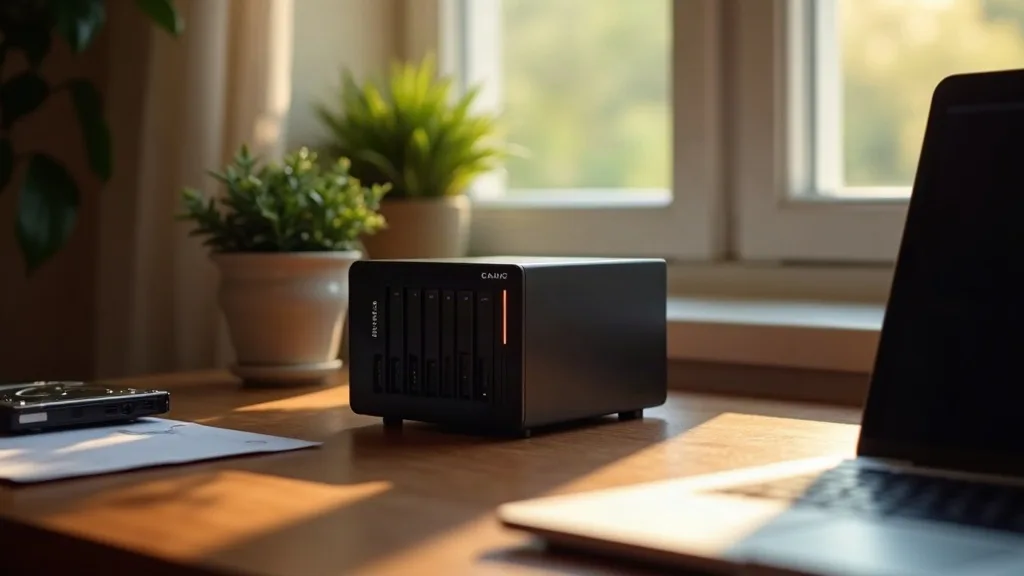
Buying your first NAS is a bit like choosing your first car. You can pick something ready-made that just works out of the box, or you can build your own from parts and get exactly what you want. This guide compares prebuilt NAS boxes with DIY NAS builds, looking at backups, photo storage and media streaming, so you can work out which route suits you. If you are searching for the best NAS for home use, the honest answer is that it depends on how comfortable you are with a bit of tinkering.
Key Takeaways
- Prebuilt NAS units (Synology, QNAP and similar) are easier to set up and come with polished software, but cost more per terabyte of storage.
- DIY NAS builds using a mini PC or old PC hardware give you more power and flexibility for less money, but need more technical confidence.
- RAID is not a backup. It protects against drive failure, not against deleted files, fire, theft or ransomware.
- Drive choice matters more than most people expect. NAS-rated drives last longer under constant use than standard desktop drives.
- Running costs (power, noise, drive replacements) are often overlooked but add up over a few years.
- Verdict: for most first-time buyers, a prebuilt NAS is the best NAS for home use because it balances simplicity with decent performance, while a DIY build suits those who already enjoy home lab projects.
Overview
A NAS, or network-attached storage device, is basically a small computer dedicated to storing files and sharing them across your home network. Prebuilt units arrive as a sealed box with drive bays, a simple operating system and an app store for extra features. DIY builds use general-purpose hardware, like an old desktop or a compact mini PC, running free NAS software such as TrueNAS or OpenMediaVault.
Both approaches can handle the three big home jobs: backing up computers and phones, storing photos safely, and streaming media to a TV or tablet. Where they differ is in setup time, cost per terabyte, and how much control you get over the hardware.
| Feature | Prebuilt NAS | DIY NAS |
|---|---|---|
| Setup time | 30 to 60 minutes | A few hours to a weekend |
| Drive bays | Usually 2 to 4 | Depends on the case, often more |
| Software | Vendor app, polished | Free, more configuration needed |
| Upgradability | Limited | High |
| Typical cost | Higher upfront | Lower, but time-intensive |
| Support | Official support channels | Community forums mostly |
If you are also building out a wider home lab, it's worth reading Home Lab for Beginners: Where to Start before deciding how deep to go with a DIY NAS project.
Pros
Prebuilt NAS
- Quick to set up: plug in drives, follow a wizard, and you are running within the hour.
- Polished software: apps for backup, photo management and media streaming are usually included.
- Lower noise and power draw: designed specifically for always-on home use.
- Official support: easier to get help if something goes wrong.
DIY NAS
- More storage for less money: old PC parts or budget components stretch your budget further.
- Full control: choose your own operating system, file system and hardware.
- Easier to repurpose: a DIY box can also run other home lab services alongside storage.
Cons
Prebuilt NAS
- Costs more per terabyte than building your own.
- Locked into the vendor's software ecosystem, which can limit flexibility.
- Upgrading beyond the drive bays is often not possible.
DIY NAS
- Setup takes longer and requires more technical patience.
- Support relies on community forums rather than an official helpline.
- Compatibility issues with drives or network cards can crop up unexpectedly.
RAID Basics and Drive Choice
RAID spreads your data across multiple drives so the system can survive one drive failing without losing files. The most common home setups are RAID 1 (mirroring two drives) and RAID 5 or RAID 6 (striping with parity across three or more drives). Prebuilt NAS units usually offer a simplified version of this, sometimes with their own branded name.
It's worth repeating: RAID is not a backup. If your NAS is stolen, catches fire, or a software bug deletes files on every drive at once, RAID will not save you. You still need a separate backup, ideally stored somewhere else entirely.
Drive choice matters too. Standard desktop hard drives are built for occasional use, while NAS-rated drives (like those marketed for 24/7 operation) are designed to run constantly without wearing out early. They usually cost a bit more, but for a device that never switches off, it's a sensible trade-off. Avoid using old spare laptop drives for anything important.
Backups, Photos and Media Streaming in Practice
For backups, both prebuilt and DIY NAS boxes can run scheduled backups from Windows, Mac and mobile devices. Prebuilt units tend to have simpler backup apps that non-technical family members can use without guidance. DIY setups can achieve the same result, but usually need a bit more configuration early on.
Photo storage is where prebuilt NAS units often shine. Many come with photo management apps that organise pictures by date or face, similar to a private version of a cloud photo service. DIY NAS software can do this too, but you may need to install and configure a separate app yourself.
Media streaming works well on both, as long as the hardware has enough processing power to convert video formats on the fly (known as transcoding). This is one area where a DIY build using a capable mini PC can actually outperform a budget prebuilt NAS. If you are leaning towards a DIY approach, our guide to the best mini PCs for a home lab is a good next stop, since many of those machines double nicely as NAS hardware.
Running Costs and Long-Term Value
It's easy to focus on the upfront price and forget what a NAS costs to keep running. Power consumption varies depending on how many drives are spinning and how often the device is active, but a NAS left on 24/7 will add a noticeable amount to your electricity bill over a year. Prebuilt units are generally tuned to sip less power than a repurposed desktop PC.
Drives themselves are a recurring cost too. Hard drives don't last forever, and a NAS running RAID means eventually replacing a drive is a case of when, not if. Budgeting for a drive replacement every few years is sensible, especially with cheaper or older drives.
Noise is another factor people underestimate until the NAS lives in a bedroom or living room. Prebuilt NAS units are usually designed with quieter fans, while DIY builds using recycled PC cases can be noisier unless you choose components carefully.
Who Should Buy It
A prebuilt NAS suits anyone who wants reliable backups and photo storage without learning a new skill set. It's a solid choice for families, home offices, or anyone who would rather spend an evening setting it up once rather than tinkering regularly.
A DIY NAS suits people who already enjoy home lab projects, want more storage for less money, or plan to run other services (like ad blocking or a media server) on the same box. If that sounds like you, pairing your NAS project with something like Pi-hole for network-wide ad blocking can make the most of the hardware you are already running.
Whichever route you pick, remember that your NAS is only as useful as the network carrying its traffic. A NAS with a shaky Wi-Fi connection will frustrate you more than the storage choice itself, so it's worth checking our guide on how to choose a router if your current setup feels dated.
Verdict
There is no single best NAS for home use that suits everyone, but there is a sensible starting point for most people. If you want something that works reliably with minimal fuss, a prebuilt NAS from a well-known brand is the safer bet. If you enjoy building things and want more value for your money, a DIY NAS built around a mini PC or spare desktop hardware can match or beat a prebuilt unit for less outlay, provided you are comfortable with some setup work.
Either way, pair your NAS with a proper backup plan, choose NAS-rated drives for anything running constantly, and budget for the running costs as well as the upfront price.
FAQ
Is a NAS better than cloud storage for home use?
A NAS gives you more control and no ongoing subscription fees, but you are responsible for backups and maintenance yourself. Many people use both: a NAS for everyday storage and a cloud service as an offsite backup.
How many drive bays do I need for a home NAS?
Two bays is enough for basic mirrored backups, while four bays gives more flexibility for growing photo and media libraries. Consider how much storage you expect to need in three to five years, not just right now.
Can I use any hard drive in a NAS?
You can, but drives designed for 24/7 NAS use tend to last longer under constant operation than standard desktop drives. Check the manufacturer's specifications before buying drives for a NAS that will run continuously.
Does a NAS need a wired network connection?
A wired Ethernet connection gives more consistent speed for large file transfers and media streaming compared with Wi-Fi. If your NAS sits far from your router, check our guide on powerline adapters as an alternative to running cables.
Is RAID the same as a backup?
No. RAID protects against a drive failing, but it won't help if files are deleted, encrypted by malware, or the whole unit is damaged. A separate backup, ideally kept somewhere else, is still necessary.
How much does it cost to run a NAS at home?
Running costs vary depending on the number of drives, how often the NAS is active, and local electricity prices, so it's best to check current running cost estimates for your chosen hardware rather than relying on a fixed figure. Factor in occasional drive replacements too.