Network 39
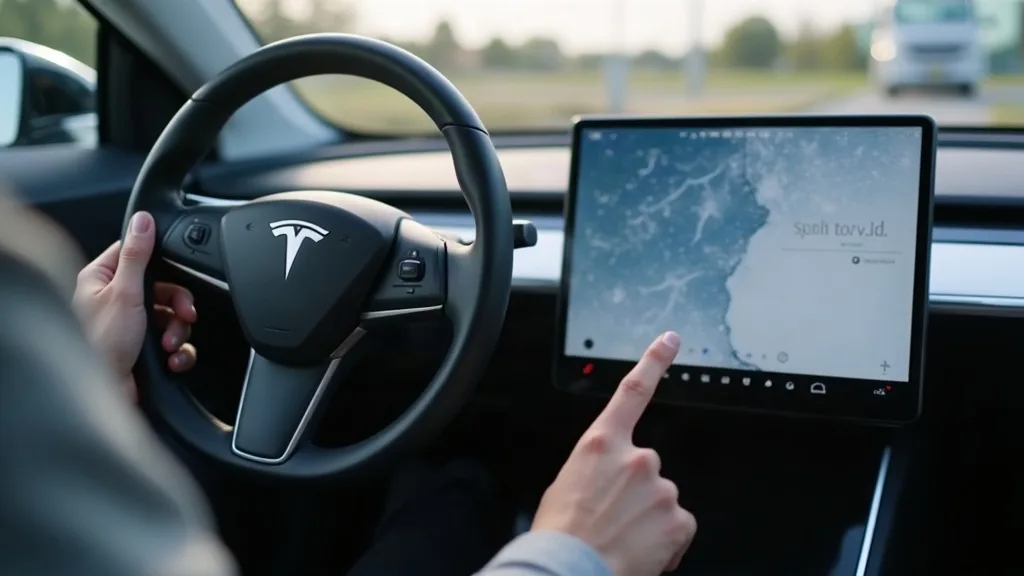
A frozen touchscreen is one of the most unsettling things that can happen in a Tesla Model Y, especially if you're mid-drive and relying on it for speed, climate or navigation. The good news is that a stuck screen almost never means something is seriously wrong with the car. Learning how to reboot a Tesla Model Y screen takes less than two minutes and solves the problem in the vast majority of cases. This guide walks through the restart steps, explains what the screen actually controls, and tells you when it's time to stop troubleshooting and call Tesla service instead.
This is a beginner-friendly fix. You don't need tools, apps or any technical knowledge, just a few seconds of patience while the system restarts.
What You'll Need
- Nothing physical, just access to the steering wheel scroll buttons
- A few minutes to wait for the screen to restart
- Your phone, in case you need the Tesla app or want to contact support afterwards
Step 1: Pull Over Safely (If You're Driving)
If the screen freezes while you're on the move, don't panic. The car still drives normally even with a frozen display, because steering, braking and acceleration don't depend on the touchscreen.
- Keep your hands on the wheel and eyes on the road.
- Find a safe place to pull over if you're uncomfortable continuing without the screen.
- Put the car in park once stopped, so the reboot doesn't interrupt anything important.
You can also do the reboot while parked at home or in a car park if the screen simply froze while you were sitting still.
Step 2: Locate the Scroll Buttons
Both steering wheel spokes have scroll wheels, which double as buttons.
- Find the scroll wheel on the left side of the steering wheel.
- Find the matching scroll wheel on the right side.
- These are the two buttons you'll press together to force a restart.
Newer Model Y interiors may have slightly different wheel shapes, but the scroll buttons sit in roughly the same spot on every version.
Step 3: Press and Hold Both Scroll Buttons
This is the core step for how to reboot a Tesla Model Y screen.
- Press down on both scroll wheels at the same time, as if clicking two buttons.
- Hold them firmly for about 10 to 15 seconds.
- Don't release early, even if nothing seems to be happening at first.
The screen will go black, which is exactly what you want to see. This confirms the reboot has started.
Step 4: Wait for the Screen to Come Back On
Once the screen goes dark, release the buttons and wait.
- Give it 30 seconds to a minute to fully restart.
- Avoid touching the screen or pressing buttons again during this time.
- Let the Tesla logo appear and disappear before expecting full functionality.
The screen should come back with everything working as normal, including speed display, climate controls and navigation.
Step 5: Check That Everything Works Properly
Once the screen is back, take a moment to confirm the fix actually worked.
- Tap through a few menus, such as climate and media, to check responsiveness.
- Check your speed reading is showing correctly.
- Test the parking cameras if you're stationary, since this is a common area where glitches show up.
If everything responds normally, you're done. If the screen is still slow, unresponsive, or freezes again shortly after, move on to the next step.
Step 6: Know When to Contact Tesla Service Instead
A single reboot fixes the issue most of the time. If it doesn't, don't keep forcing restarts repeatedly, as that's a sign of a deeper problem.
- Contact Tesla through the app or website if the screen freezes again within a few hours.
- Book a service appointment if the screen shows visual glitches, lines or flickering even after rebooting.
- Treat it as urgent if the screen loses functions that affect safety, such as cameras or warning lights, and the reboot doesn't restore them.
Persistent freezing can point to a software issue that needs a proper update or diagnostic check, which isn't something you can fix with a button combo at home.
Common Mistakes to Avoid
- Releasing the scroll buttons too early, before the screen actually goes black
- Rebooting repeatedly in a short space of time instead of giving the car a proper rest between attempts
- Assuming the car itself has stopped working when it's only the screen that's frozen
- Ignoring repeated freezes instead of booking a service check
- Pressing random buttons on the screen while it's restarting, which can interrupt the process
- Forgetting to pull over safely first if the freeze happens while driving
Conclusion
Knowing how to reboot a Tesla Model Y screen is a handy bit of knowledge every owner should have tucked away. The scroll button restart fixes the vast majority of freezes within a couple of minutes, with no tools or technical skill required. If the problem keeps coming back after a reboot, that's your cue to get Tesla service involved rather than repeatedly restarting the system. Most owners go years without ever needing more than this simple fix.
If you're also looking after the physical side of your interior, it's worth checking out guides like Model Y Screen Protectors: Everything You Need to Know and Does a Model Y Need a Screen Protector? to keep that display looking as good as it works.
FAQ
Why is my Tesla Model Y screen not responding?
This usually happens because of a minor software glitch rather than a hardware fault. The fix is almost always a simple reboot using both scroll buttons, which clears whatever caused the freeze.
Will rebooting the screen delete my settings or data?
No, a reboot doesn't erase your profile settings, saved locations or preferences. It simply restarts the software running the display, similar to restarting a phone.
What functions does the Model Y screen actually control?
The touchscreen handles climate control, navigation, media, speed display, camera views and most vehicle settings. It's the main hub for almost everything except core driving functions like steering and braking, which operate independently.
Is it safe to drive with a frozen screen?
Yes, in the short term. Steering, braking and acceleration all work without the screen, so you can safely pull over before dealing with the freeze rather than panicking mid-drive.
How often do Model Y screens freeze?
It varies a lot between cars and software versions, but most owners experience it rarely, if at all. Occasional freezes are considered normal and not a sign of a faulty vehicle.
Should I worry if the reboot doesn't fix the problem?
Not immediately, but you should get it checked. If the screen keeps freezing after a reboot or shows visual faults, contact Tesla service rather than continuing to force restarts. While you're at it, if you're thinking about interior upgrades once the screen issue is sorted, pieces like Do Model Y Mats Fit Every Version and Trim? and What Are XPE Mats and Are They Good for a Model Y? are worth a read.