 Network 39
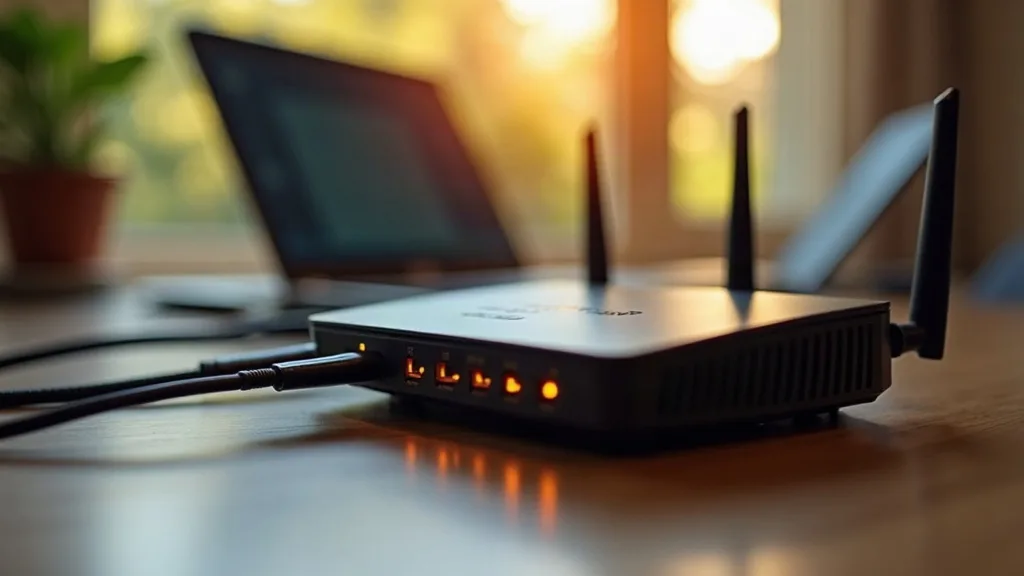
Every time you ask a smart speaker for the weather or press play on a streaming show, your home network quietly performs dozens of small handshakes between devices you never see. Most people only notice this invisible machinery when it stops working, usually right before an important video call. Understanding a few core ideas behind it means fewer mystery outages and a lot less guessing when something goes wrong.
This guide covers home networking basics in plain English: how data travels from your internet provider into your house, how devices get addresses, how names turn into connections, and how dozens of gadgets share one internet line. No engineering degree required.
Key Takeaways
- Your modem connects your home to the internet, while your router manages traffic inside your home.
- Every device needs an IP address, a bit like a street address for data packets.
- DHCP automatically hands out those addresses so you don't have to configure each device by hand.
- DNS translates human-friendly website names into the numeric addresses computers actually use.
- NAT lets every device in your house share one public IP address from your provider.
- Most Wi-Fi problems trace back to one of these four systems, not a faulty device.
- Understanding this chain makes troubleshooting and basic security far less intimidating.
Modem Versus Router: Where Your Network Actually Starts
People often use "modem" and "router" interchangeably, but they do different jobs. The modem is the translator between your home and your internet provider's network, converting the signal coming down your phone line, cable, or fibre into something your home equipment understands.
The router is the traffic manager inside your house. It decides which device gets which data, creates your Wi-Fi network, and keeps your home traffic separate from the wider internet. Many UK providers supply a single box that combines both jobs, which is convenient but can limit your options later.
If you're shopping for new hardware or wondering whether your provider's all-in-one box is holding you back, our plain-English router buying guide walks through what actually matters.
A Simple Way to Picture It
Think of the modem as your letterbox and the router as the person inside sorting post for everyone in the house. The letterbox doesn't care who the post is for, it just lets things in. The sorter decides whose desk each letter lands on.
IP Addresses: The Postal System For Your Data
Every device on a network needs a unique address so data knows where to go. That's an IP address, usually written as four numbers separated by dots, like 192.168.1.15. It works much like a house number on a street, telling the network exactly which device should receive a particular piece of information.
There are two kinds you'll encounter at home. A private IP address is used only inside your house, and your router assigns these to your laptop, phone, smart TV and so on. A public IP address is the one your internet provider gives your entire home, the address the wider internet sees when you browse or stream.
This is why two different homes can both have a device numbered 192.168.1.15 without any conflict. Those addresses never leave the house, a bit like how many streets around the country can each have a house number 15.
DHCP: The System That Hands Out Addresses Automatically
Without DHCP (Dynamic Host Configuration Protocol), you'd need to manually type an IP address into every device that joins your network, then make sure no two devices ever clashed. That's tedious and error-prone, especially in a home with fifteen or twenty connected gadgets.
Instead, your router runs a DHCP service that automatically assigns a free address to each new device the moment it connects. Your phone joins the Wi-Fi, asks for an address, and the router hands one over within a second or two, rather like a car park attendant pointing you to the next empty space.
This is also why restarting your router sometimes fixes connectivity oddities. It can clear out confused address assignments and give every device a fresh, correctly working one. If you're setting up a growing collection of devices, perhaps as part of a beginner home lab, it helps to know that most routers let you reserve specific addresses for things like servers or network storage, so they don't change unexpectedly.
DNS: Turning Website Names Into Numbers
Computers navigate the internet using IP addresses, but nobody wants to memorise a string of numbers to check their email. DNS (Domain Name System) solves this by acting as a phone book, converting human-friendly names like a website address into the numeric IP address a server actually uses.
When you type a web address into your browser, your device asks a DNS server, "What's the IP address for this?" The answer comes back in a fraction of a second, and your browser connects to that numeric address behind the scenes. You never see the number, only the smooth result.
This is also a common point of failure. If DNS stops responding, websites appear to be down even though your internet connection is perfectly fine. That distinction matters a lot when you're trying to work out what's actually broken, and it's one of the first things covered in most troubleshooting checklists.
NAT: Sharing One Internet Connection Between Many Devices
Your internet provider typically gives your home a single public IP address, yet you might have fifteen devices online at once. NAT (Network Address Translation) is the clever bit of router software that makes this possible, translating between your private home addresses and that one public address.
Picture a hotel with a single main phone number. Calls coming in reach the reception desk, which then connects the caller through to the correct room extension. NAT does something similar in reverse: it tracks which device inside your home asked for which piece of data, so replies get routed back to the right gadget rather than being broadcast to everyone.
NAT also provides a useful side effect for security, since devices outside your home can't easily reach inside without your router allowing it first. It's not a complete security measure on its own, but it's a helpful first layer that works quietly in the background.
Wi-Fi Versus Wired: How Devices Actually Join The Network
Once you understand addresses and translation, it helps to know how devices physically connect. Wired connections run over an Ethernet cable directly to your router, offering the most consistent speed and the fewest points of failure. Wireless connections use radio signals and offer the freedom to roam, at the cost of occasional interference and signal drop-off.
Most homes run a mix of both, with stationary devices like games consoles, desktop PCs or network storage on cable where possible, and everything else on Wi-Fi. If you're choosing between Wi-Fi bands for different devices, our guide on 2.4GHz versus 5GHz Wi-Fi explains which suits which situation.
When Cables Aren't Practical
Running Ethernet through walls isn't always realistic in a rented flat or an older house. Powerline adapters, which send network data over your home's electrical wiring, can bridge that gap in some situations. Our piece on whether powerline adapters actually work covers when they're a sensible choice and when they fall short.
Why Wi-Fi Coverage Varies Room To Room
Understanding IP addresses and DNS won't fix a weak signal in the back bedroom, but it's worth knowing why coverage drops off in the first place. Wi-Fi signals weaken as they pass through walls, floors and furniture, and thick materials like brick or concrete cause the biggest losses.
A single router, however good, has a limited range once you factor in a typical UK home's layout. This is where mesh systems or extenders come in, spreading coverage across multiple access points rather than relying on one box in the hallway. If certain rooms feel like a dead zone, our guide on extending Wi-Fi range to every room walks through the options, and our roundup of mesh Wi-Fi systems for UK homes compares specific products if you're ready to buy.
Putting It All Together: A Day In The Life Of A Web Request
It helps to see the whole chain in action. Say you open your laptop and load a news website first thing in the morning.
Your laptop already has a private IP address, handed out by DHCP when it joined your home Wi-Fi earlier. Your browser asks a DNS server to translate the website's name into an IP address. Once it has that number, your laptop sends a request through your router, which uses NAT to tag the request as coming from your home's single public IP address and keeps track of it.
The website's server sends the page back to your public address, and your router's NAT table matches the reply to your laptop specifically, rather than your partner's phone or the smart TV in the lounge. The whole sequence happens in well under a second, every single time you load a page.
Conclusion
Home networking basics boil down to four ideas working together: your router and modem handling the physical connection, IP addresses identifying each device, DHCP assigning those addresses automatically, DNS translating names into numbers, and NAT letting everyone share one internet line. None of it needs to feel mysterious once you see how the pieces fit.
A good next step is simply logging into your router's settings page and having a look around. Seeing the list of connected devices and their assigned addresses makes all of this far more concrete than reading about it in the abstract.
FAQ
What's the difference between my router's IP address and my public IP address?
Your router's IP address is a private one, typically something like 192.168.1.1, used only within your home. Your public IP address is assigned by your internet provider and represents your whole household to the wider internet.
Why does my internet say "connected" but websites won't load?
This usually points to a DNS problem rather than a connection problem, since your device can reach the router and the internet but can't translate website names into addresses. Restarting your router or temporarily switching to a different DNS service often resolves it.
Does restarting my router actually help?
Yes, more often than you'd expect. It clears temporary glitches in DHCP address assignments and refreshes the connection to your internet provider, which solves a surprising number of everyday issues.
Can two devices on my network have the same IP address?
Not normally, since DHCP is specifically designed to prevent that by tracking which addresses are already in use. Conflicts can occasionally happen if a device is manually configured with a fixed address that clashes with one DHCP later assigns.
Is NAT the same thing as a firewall?
No, though they often work alongside each other. NAT exists to let multiple devices share one public IP address, while a firewall specifically filters traffic to block unwanted connections; our [home network security basics guide] covers both in more depth.
How do I know if my Wi-Fi problem is a speed issue or a basic connectivity issue?
Run a proper speed test when you suspect a slowdown, ideally with other devices paused, to rule out simple congestion. Our guide on running accurate broadband speed tests explains how to get a reliable result rather than a misleading one.
Do I need to understand all this to run a home lab?
A basic grasp helps a lot, especially around IP addresses and DHCP reservations, since home lab devices often need stable addresses to stay reachable. Our guide to home labs for beginners and our recommended mini PCs for a home lab are good starting points once the basics click.