If you've got one room where the Wi-Fi signal drops to a single bar, or a whole upstairs that feels like a dead zone, you're not alone. Most homes weren't built with Wi-Fi in mind, and a single router stuck in a cupboard under the stairs was never going to cover three floors and thick stone walls. The good news is there are several reliable ways to extend Wi-Fi range, and the right one depends on your home, your budget and whether you own or rent.
This guide walks through every realistic option, from free fixes to full mesh systems, so you can pick the approach that actually suits your situation rather than just buying the first gadget you see online.
Time needed: 30 minutes for simple fixes, up to half a day for a full mesh or Ethernet installation. Difficulty: Easy to moderate, depending on the method you choose.
What You'll Need
- Your current router's admin login (usually printed on the device)
- A smartphone or laptop to test signal strength around your home
- A tape measure or rough idea of your home's layout
- Optionally: a Wi-Fi extender, mesh system, or powerline adapters (we'll help you decide)
- Ethernet cable, if you're considering a wired backhaul
Step 1: Work Out Where the Dead Zones Actually Are
Before spending any money, map out the problem properly. Walk around your home with your phone's Wi-Fi settings open and note the signal bars in each room. Pay attention to:
- Rooms where video calls drop or buffering happens constantly
- Upstairs rooms if your router sits downstairs (or vice versa)
- Garden offices, garages, or converted outbuildings
- Rooms with thick walls, chimneys, or lots of metal (kitchens are notorious)
If the problem is just one room with slightly weak signal, you might not need a big solution. If it's consistent across half the house, you'll want something more robust like mesh. Knowing this now saves you buying the wrong gear.
Step 2: Try the Free Fix First, Moving the Router
This sounds obvious, but it's skipped constantly. Routers are often tucked away for tidiness, next to the TV unit or in a hallway cupboard, which is usually the worst possible spot.
- Move the router to a central, elevated position if you can, think a shelf in the hallway rather than the floor of a cupboard.
- Keep it away from thick walls, metal objects, mirrors, and large appliances.
- Avoid placing it right next to other electronics like baby monitors or microwaves, which cause interference.
- If your router has external antennas, angle a couple of them vertically and a couple horizontally to spread coverage in multiple directions.
This single change can fix dead zones in smaller flats and terraced houses without spending a penny. For bigger or more oddly shaped homes, you'll likely need one of the methods below as well.
Step 3: Check Whether Your Router Is Actually the Problem
Sometimes what feels like a range issue is really a router that's underpowered or outdated. Older routers, especially ones supplied free by broadband providers, often struggle to cover more than a few rooms even when placed well.
If your router is more than four or five years old, or you've never upgraded from the one your ISP gave you, it's worth checking whether a newer model would solve the problem outright. Our guide on how to choose a router walks through what actually matters when buying one, including which features genuinely help with coverage rather than just looking good on a spec sheet.
It's also worth ruling out other causes of poor performance before assuming it's purely a range problem. Slow speeds in one room can come from congestion, interference, or an ISP issue rather than distance alone. Our guide on why your Wi-Fi might be slow covers how to tell the difference.
Step 4: Consider a Wi-Fi Extender for Small, Simple Fixes
Wi-Fi extenders (sometimes called boosters or repeaters) pick up your existing signal and rebroadcast it further into your home. They're the cheapest and quickest option, but they come with trade-offs.
Good for:
- Fixing one specific dead zone, like a single bedroom or home office
- Renters who want a plug-and-go solution with no setup commitment
- Smaller budgets
Downsides:
- Speeds often drop noticeably through an extender, sometimes by half or more
- They create a separate Wi-Fi network name in older models, meaning your devices don't automatically switch between router and extender
- Placement matters a lot, put it too far from the router and it has nothing good to extend
If you only have one problem room and don't mind a bit of speed loss there, an extender is a sensible, low-cost starting point.
Step 5: Consider a Mesh System for Whole-Home Coverage
Mesh Wi-Fi systems use multiple units (nodes) spread around your home, all working together as one network. Unlike extenders, they're designed to hand off your devices between nodes without you noticing, and they typically keep speeds much closer to your normal broadband speed.
Good for:
- Larger homes, multiple floors, or homes with thick or awkward walls
- Anyone who wants one Wi-Fi name everywhere with no manual switching
- Households with lots of devices, since mesh systems generally handle more connections smoothly
Downsides:
- More expensive than a single extender, though prices vary a lot depending on brand and number of nodes
- Some older or budget mesh systems still need a wired connection between nodes to perform well
- Renters may be limited to systems they can take with them, which is fine since most mesh kits are just plugged in rather than installed
Mesh has become the go-to recommendation for most homes with persistent coverage problems, because it solves the "one room with poor Wi-Fi" issue properly rather than just patching it. If you're planning a long-term fix and can stretch the budget, mesh is usually the better investment over extenders.
Step 6: Consider Powerline Adapters If Your Walls Are the Problem
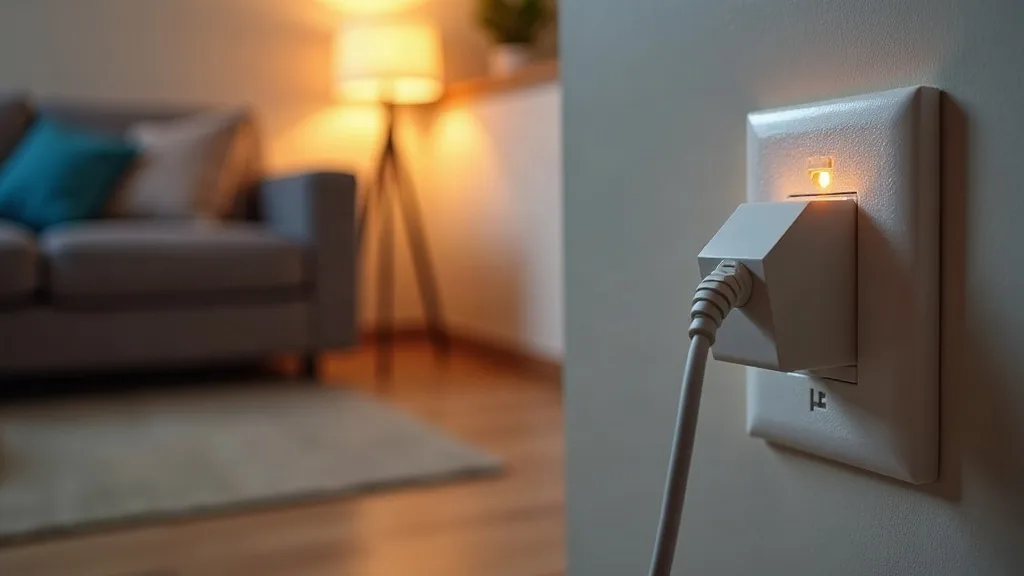
Powerline adapters send your network signal through your home's electrical wiring instead of over Wi-Fi. You plug one adapter in near your router and connect it with an Ethernet cable, then plug a second adapter into a socket in the room that needs coverage.
Good for:
- Homes with thick walls, old stone construction, or lots of interference that blocks Wi-Fi signals effectively
- Rooms where running an actual Ethernet cable isn't practical
- Renters, since nothing is permanently installed, you just unplug and take it with you
Downsides:
- Performance depends heavily on your home's electrical wiring, older or more complex wiring setups can slow things down
- Adapters plugged into the same circuit work best, different circuits or fuse boards can cause issues
- Some adapters only provide a wired connection at the far end, so you'd still need an extender or access point there for actual Wi-Fi
Powerline is a solid middle-ground option, especially in older homes where Wi-Fi signals struggle to pass through walls but running cables isn't realistic.
Step 7: Consider Running Ethernet for the Best Possible Result
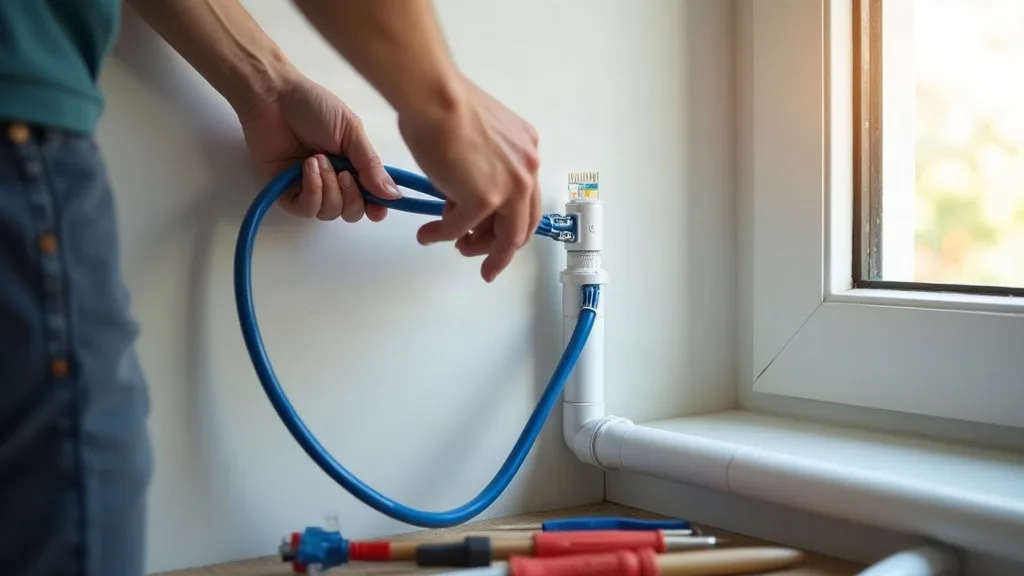
If you're willing to put in more effort, running actual Ethernet cable to different parts of your home gives you the most reliable result, full speed, no interference, and no dependency on wireless signal strength at all.
- Plan a route from your router to the room or rooms that need coverage, through lofts, under floors, or along skirting boards.
- Use a professional installer if you're not comfortable running cable through walls or ceilings, particularly in a rented property where alterations may need permission.
- Connect the far end to a switch, access point, or mesh node for wired backhaul, which gives you the strongest possible coverage in that area.
- Consider doing this once, during any renovation work, since it's much easier to run cables while walls are already open.
This isn't practical for everyone, especially renters, but if you own your home and are tackling a renovation anyway, it's worth considering. Combining wired Ethernet with a couple of mesh nodes using wired backhaul gives you the best of both worlds, rock-solid coverage with simple wireless roaming on top.
Step 8: Match the Method to Your Situation
With all the options laid out, here's a quick way to decide what suits you:
- Renting a flat with one weak room: Try moving the router first, then a single extender or powerline adapter.
- Renting a larger property with multiple weak spots: A mesh system you can unplug and take with you when you move.
- Owning a home with thick or old walls: Powerline adapters or mesh with wired backhaul where possible.
- Owning a larger home or planning renovations: Ethernet cabling combined with mesh nodes for the most reliable long-term result.
- Just need a quick, cheap fix: Router repositioning and a basic extender will often be enough.
There's no single best answer here, it genuinely depends on your home's layout, your budget, and whether you're likely to move house soon.
Common Mistakes to Avoid
- Buying a mesh system or extender before checking if simply repositioning the router solves the problem
- Placing an extender too far from the router, leaving it with a weak signal to rebroadcast
- Assuming all powerline adapters will work well together, mixing brands or models often causes compatibility issues
- Forgetting that older routers and extenders may use different Wi-Fi standards, which limits top speeds even with a good signal
- Running cables through walls without checking rental agreements or getting proper advice first
- Ignoring interference sources like microwaves, baby monitors and neighbouring Wi-Fi networks, which can undermine any fix you put in place
Conclusion
Every home is different, so the best way to extend Wi-Fi range depends on your layout, budget and how long you plan to stay put. Start simple: reposition your router and check it isn't outdated before spending on new equipment. From there, extenders suit single problem rooms, mesh suits larger or trickier homes, powerline works well behind thick walls, and Ethernet gives you the strongest result if you're willing to run cable. Pick the option that matches your situation rather than the most expensive one, and you'll get reliable Wi-Fi in every room without unnecessary cost or hassle.
FAQ
What's the cheapest way to extend Wi-Fi range?
Repositioning your router is free and often fixes smaller issues. If that's not enough, a basic Wi-Fi extender is usually the next cheapest option, though speeds through it will be lower than your main connection.
Is mesh Wi-Fi better than a Wi-Fi extender?
For most homes with coverage problems in multiple rooms, yes. Mesh systems maintain speed better and let devices roam between nodes automatically, while extenders create a separate network and often slow things down more noticeably.
Can I extend Wi-Fi range without buying any new equipment?
Sometimes. Moving your router to a better position, reducing interference from other electronics, and updating your router's firmware can all improve coverage without spending anything.
Do powerline adapters work in every home?
Not always. Performance depends on your electrical wiring, and homes with older or more complex wiring setups may see weaker results. It's worth testing in your specific rooms before committing to multiple adapters.
How many mesh nodes do I need for my home?
It varies depending on size and layout, but as a rough guide, a typical two to three bedroom home often manages with two to three nodes. Larger or multi-floor homes may need more to avoid gaps in coverage.
Will extending my Wi-Fi range slow down my internet speed?
It depends on the method. Wired options like Ethernet and powerline generally keep speeds closest to normal. Wireless extenders and mesh systems using wireless backhaul can introduce some slowdown, though good mesh systems minimise this considerably.