Network 39
Most Wi-Fi problems aren't actually Wi-Fi problems. They're wiring problems wearing a Wi-Fi costume. A single cable running from your router to an access point upstairs will usually do more for your signal than another £200 mesh unit ever could.
This guide picks up where basic cable-running advice leaves off. We'll look at planning a proper wired backbone for a UK home: which cable to buy, where the switch and patch panel should live, how many access points you actually need, and when mesh backhaul makes more sense than running cable at all. If you haven't pulled any cable yet, it's worth reading our guide on how to run Ethernet cable through your house alongside this one, since that covers the physical install in more depth.
Key Takeaways
- A wired backbone with a few access points almost always beats a mesh system on performance, especially in homes with thick walls or multiple floors.
- Cat6 is the sensible default for home network wiring in 2026; Cat6a only matters if you plan to run 10 gigabit later.
- Put your switch and patch panel somewhere central and ventilated, not crammed in a cupboard with no airflow.
- One wired access point per floor is often enough; two badly placed ones can be worse than one good one.
- Mesh backhaul is a reasonable fallback when cabling isn't possible, but it shares bandwidth that wired APs don't.
- Label every cable as you go. Future you will not remember which one goes where.
- Plan for more ports than you think you need. Patch panels are cheap; ripping out walls twice is not.
Why Bother With Wired Infrastructure At All
Wi-Fi is a shared, half-duplex radio medium. Every device on the same band is taking turns, and walls, floors and other networks all eat into your speed and range. A cable doesn't have any of those problems. It gives a fixed amount of bandwidth to exactly one device, all the time.
That matters most for access points. An AP connected to a cable can push its full speed to your phone, laptop or TV without worrying about backhaul. An AP relying on Wi-Fi to talk to the router (as most mesh satellites do) is splitting its radio time between serving your devices and talking to the rest of the mesh. In a small flat that barely matters. In a three-storey house with solid walls, it often does.
If you've already tried boosting coverage with extenders or mesh and found it patchy, our guide on extending Wi-Fi range to every room covers the non-wired options in detail. This guide assumes you've decided cable is worth the effort, at least for part of the job.
Choosing The Right Cable Category
Cable categories confuse people more than they should. Here's the short version for home use.
Cat5e
Fine for gigabit speeds over typical home distances. It's cheap and still sold everywhere. The main downside is it's being phased out, so stock may thin over time, and it has less headroom for future speeds.
Cat6
The sensible middle ground. It supports gigabit easily and can handle 2.5 or 5 gigabit over shorter home runs, which covers most multi-gig gear sold today. Unless you have a specific reason not to, buy Cat6.
Cat6a
Thicker, stiffer, and better shielded, Cat6a supports full 10 gigabit over longer runs. It's worth it if you're building a home lab or expect to need 10 gigabit between a server and switch. For general home wiring to access points and TVs, it's usually overkill, and the extra stiffness makes it harder to pull through tight stud walls.
For most houses, buying solid-core Cat6 for all fixed runs, with stranded patch cables for the flexible bits at each end, is a good balance of cost and future-proofing.
Planning Where The Switch And Patch Panel Live
This is the decision that quietly makes or breaks the whole project. Get it wrong and you're either running far more cable than necessary or dealing with a noisy box in the living room.
Central Is Better Than Convenient
The ideal spot is roughly central to the house, not necessarily where your internet comes in. If your router sits in a front hallway but your access points need to reach a back bedroom and a loft conversion, running one longer cable from the hallway to a central cupboard, then shorter cables out from there, is usually tidier than radiating everything from the hallway.
Ventilation Matters More Than People Expect
Switches and routers generate heat, and a patch panel itself is passive, but a cupboard stuffed full of warm electronics with the door shut can run hotter than you'd like. Leave gaps, consider a small vented panel in the cupboard door, and avoid stacking gear directly on top of insulation.
A Simple Setup That Works For Most Homes
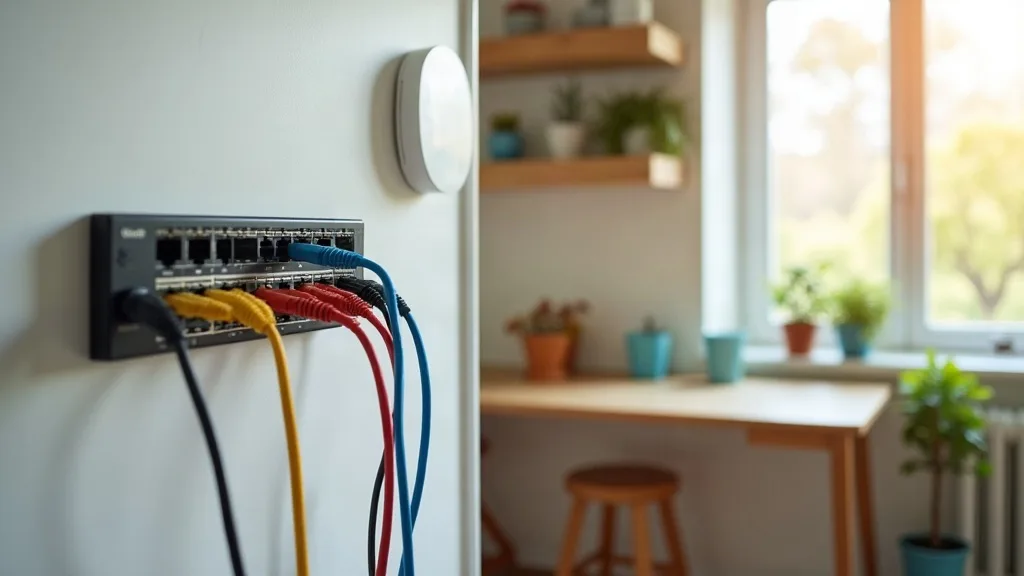
- One structured wiring cupboard or box, ideally under the stairs, in a loft hatch area, or in a utility room.
- A patch panel with slightly more ports than your current count (go for the next size up, such as 12 or 24 ports rather than exactly what you need today).
- A managed or unmanaged switch connected to the patch panel, then to your router.
- Short, clean patch cables between the panel and switch, labelled at both ends.
If you're also setting up a home lab on the same network, it's worth reading home lab for beginners: where to start before finalising your switch choice, since lab gear often wants more ports and sometimes faster ones than a simple home setup.
How Many Access Points You Actually Need
This is where people either underspend or overspend. Both are easy mistakes.
One Per Floor Is A Good Starting Rule
For a typical UK semi or terrace with standard plasterboard or brick internal walls, one access point per floor, placed centrally, usually gives solid coverage. A three-bed, two-storey house often does fine with two APs: one downstairs, one upstairs, each wired back to the switch.
Where Mounting Position Beats Power
A cheap access point mounted centrally on a ceiling or high wall will usually beat an expensive one stuffed in a corner behind a sofa. Signal spreads outward and downward from APs, so height and central placement do a lot of the work. Avoid hiding an AP inside a cupboard or behind a TV unit if you can help it.
Signs You Need An Extra One
- A loft conversion or extension that sits further from the rest of the house.
- Solid stone or thick brick walls between rooms (common in older UK houses).
- A garden office or outbuilding that needs its own coverage.
In those cases, add a third AP rather than cranking up power on the existing two. Overlapping coverage from well-placed, moderate-power APs works better than one AP trying to blast through three walls.
Wired Access Points Versus Mesh Backhaul
This is the real crux of a home wiring plan, so it's worth laying out plainly.
What Wired Backhaul Gives You
When an access point connects to the switch by cable, its full wireless capacity goes to your devices. Two or three wired APs around the house behave like one seamless network to your phone, roaming between them without you noticing, but each one is working at full strength because it isn't also relaying data back to a hub over Wi-Fi.
What Mesh Backhaul Gives You
Mesh systems are built to work without any cabling. The satellites talk to the main unit (and sometimes each other) over Wi-Fi, usually on a dedicated band if the system supports tri-band. This is genuinely clever engineering, and it's made whole-home Wi-Fi accessible to people who can't or don't want to run cable.
The trade-off is that wireless backhaul still eats into available bandwidth, especially with two-band mesh units, and performance can dip in the rooms furthest from the main unit. If you want to compare specific systems, our guide to the best mesh Wi-Fi systems for UK homes breaks down which ones handle backhaul best.
A Sensible Middle Ground
You don't have to pick one approach for the whole house. A common and effective setup is:
- Run cable to the two or three spots where you most need strong, reliable coverage (home office, main living areas).
- Use a mesh satellite, powerline link, or even a single Wi-Fi extender for one awkward room that's hard to cable, such as a garage or loft.
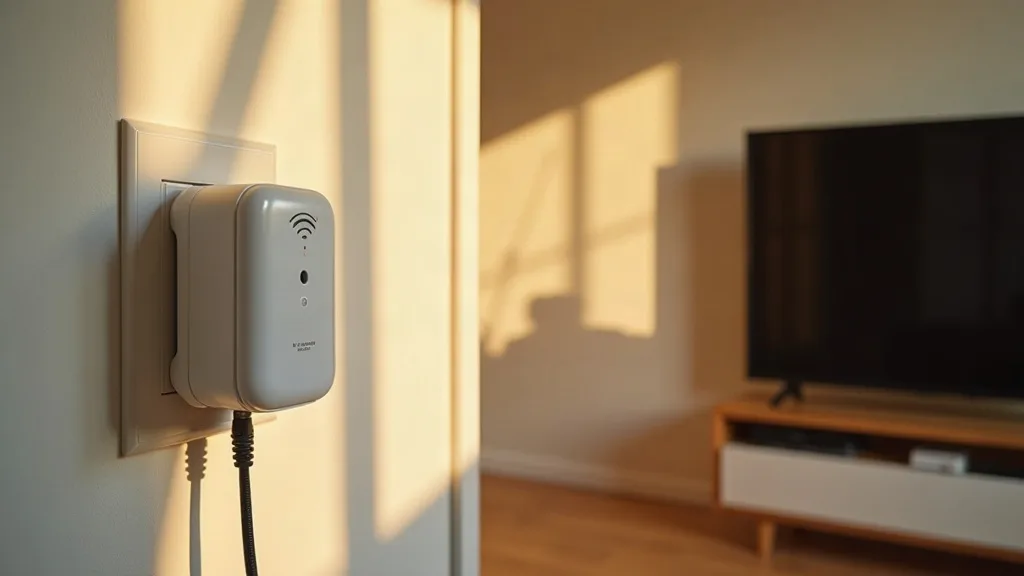
If running a cable to one particular room genuinely isn't feasible, powerline adapters are a reasonable stopgap, provided you understand their limits around older wiring and ring circuits.
Planning Your Home Network Wiring Layout
Before buying anything, sketch the house, floor by floor, and mark three things: where devices that need speed live (TVs, desktops, games consoles, home lab gear), where access points should go, and where the switch and patch panel will sit. This fifteen-minute exercise saves most of the common mistakes.
Count Ports Honestly
Add up wired devices per room: TV, console, set-top box, smart hub, desktop PC. It adds up faster than people expect. A single cable to a room with four devices means you need a small switch in that room too, so plan for that rather than discovering it later.
Think About Future Devices
Home labs, extra smart home hubs, and additional access points tend to appear over a few years, not all at once. Buying a patch panel and switch with a handful of spare ports now is far cheaper than redoing the cabling later. If you're building out a lab setup, check best mini PCs for a home lab for an idea of what you might want wired in down the line.
Label As You Go
Write on both ends of every cable, and keep a simple list (even a photo of a handwritten sheet works) noting which patch panel port goes to which room. This takes ten minutes during the install and saves hours of tracing cables later.
Choosing The Router That Ties It All Together
A wired backbone is only as good as the router or gateway at its centre. If you're doing a full wiring project, it's a sensible moment to also check whether your router can handle multiple wired access points properly, particularly around VLAN support, guest networks and firmware updates. Our plain-English router buying guide covers what actually matters when shopping, rather than spec-sheet noise.
It's also worth understanding how your access points handle 2.4GHz versus 5GHz Wi-Fi, since getting band settings right makes a bigger difference to everyday speed than most hardware upgrades do.
Conclusion
A good home network wiring plan isn't about running cable to every room on principle. It's about getting a few cables to the right places: a central switch and patch panel, one or two well-positioned wired access points, and a sensible fallback (mesh or powerline) for the rooms that are too much hassle to cable. Start by sketching your house and marking where the slow spots and heavy-use devices actually are, then work outward from there. That one sketch will save you more time and money than any piece of hardware you buy.
FAQ
Do I need a patch panel, or can I just wire straight into the switch?
You can wire directly into a switch, and in a small flat that's often fine. A patch panel makes sense once you have more than about six or seven cable runs, since it keeps the wall-side wiring permanent and lets you swap switches or rearrange patch cables without touching the in-wall cable.
How many access points does an average UK house need?
Most two-storey homes do well with two, one per floor, placed centrally. Larger houses, homes with thick stone walls, or properties with extensions and loft conversions may need three. Start with two and add a third only if there's a clear dead zone.
Is Cat6a worth the extra cost for a normal home?
Not usually. Cat6 handles gigabit and most multi-gig home gear over typical cable runs. Cat6a is worth paying for mainly if you're setting up a home lab or expect a 10 gigabit link between a server and switch.
Can I mix wired access points and mesh satellites on the same network?
Yes, and it's a common approach. Use wired APs for the rooms you want strong, consistent coverage in, and a mesh satellite or extender for one hard-to-cable spot. Just make sure they're all using the same network name and security settings so devices roam smoothly.
Where's the best place to put the main switch?
Somewhere central to the house, with decent ventilation, such as a cupboard under the stairs or a loft hatch area. Central placement keeps individual cable runs shorter and more manageable than running everything from one corner of the house.
What's the easiest way to add more ports later without rewiring?
Buy a patch panel and switch with a few more ports than you currently need. Adding a device later is then just a matter of plugging into a spare port, rather than opening up walls again.