Dodgy Wi-Fi in the back bedroom doesn't always mean you need to buy another gadget. Before you spend money on a mesh kit or an extender, there are several free and near-free ways to extend Wi-Fi range without an extender, just by changing where things sit and how they're set up. This guide walks you through each fix in order of effort, starting with the free ones. Most steps take five to twenty minutes, and you don't need any technical background to follow along.
What You'll Need
- Access to your router and its admin settings (usually a web address or app)
- A smartphone or laptop to test signal strength around the house
- A tape measure or just a rough sense of your home's layout
- Optionally, an old router or powerline adapters you already own
- About 30 to 60 minutes total if you're doing everything in one go
Step 1: Move the Router to a Better Spot
This is the single biggest free fix most people never try. Routers are often shoved in a cupboard, behind the telly, or tucked into a corner where the signal has to fight through walls and furniture before it reaches you.
- Put the router as close to the centre of your home as possible, not just near the front door where the cable enters.
- Raise it up. Shelf height or higher works better than floor level, since signal spreads outward and downward from the antennas.
- Keep it away from thick walls, metal filing cabinets, mirrors, and large fish tanks. All of these block or absorb Wi-Fi signal.
- Avoid tucking it inside an enclosed cupboard or behind a TV. Even a few centimetres of open space around the router helps.
- Keep it clear of other electronics like microwaves, baby monitors, and cordless phones, which can interfere with the 2.4GHz band.
If your home is long and narrow, or spread over multiple floors, placement alone might not solve everything. In that case, pair this with the settings changes below before considering any hardware purchase.
Step 2: Adjust Your Wi-Fi Channel and Band Settings
Most routers ship with settings that are fine for a flat but not ideal for a house full of neighbouring Wi-Fi networks. A few tweaks here can noticeably increase Wi-Fi range from your router without spending anything.
- Log into your router's admin page (check the sticker on the router itself for the address and default login).
- Look for the wireless or Wi-Fi settings section.
- If you have a dual-band router, try switching your main devices to the 2.4GHz band for rooms further away. It has a shorter range than 5GHz but travels through walls more easily.
- Check the channel setting. If it's set to "Auto," try manually picking a quieter channel, especially on 2.4GHz where channels 1, 6, and 11 cause the least overlap with neighbours.
- Turn off outdated protocols if your router has a legacy mode enabled by default, since this can sometimes slow down the whole network to accommodate older devices.
- Save your changes and restart the router.
These settings changes won't add kilometres of range, but they often clear up weak spots that were caused by interference rather than distance.
Step 3: Update Firmware and Reboot Properly
It sounds too simple, but outdated firmware can quietly cause poor performance, dropped connections, and shorter effective range. Manufacturers release updates that improve signal handling and fix bugs you'd never notice until they're gone.
- In your router's admin panel, look for a firmware or software update option.
- Install any available update and allow the router to restart on its own.
- Once it's back online, do a full power cycle: unplug it for 30 seconds, then plug it back in.
- If you reboot your router regularly as a habit, it's worth knowing you don't need to do it manually every time. If you'd rather automate this, see this guide on restarting your router remotely for some easy options.
Step 4: Reuse Old Equipment Instead of Buying New
If you've got an old router gathering dust in a drawer, it can often be repurposed to cover a weak spot in the house for free. This is one of the best diy signal booster for wifi tricks going, because you're using kit you already own rather than buying anything new.
- Dig out any old router from a previous broadband provider or upgrade.
- Check whether it supports being configured as an access point or repeater. Most routers from the last decade can do this with a few settings changes.
- Follow a step-by-step walkthrough on how to use an old router as a Wi-Fi extender, which covers the exact settings to change and cables to connect.
- Place the old router in the weak spot, connected either via Wi-Fi or, ideally, an Ethernet cable back to your main router for a more stable connection.
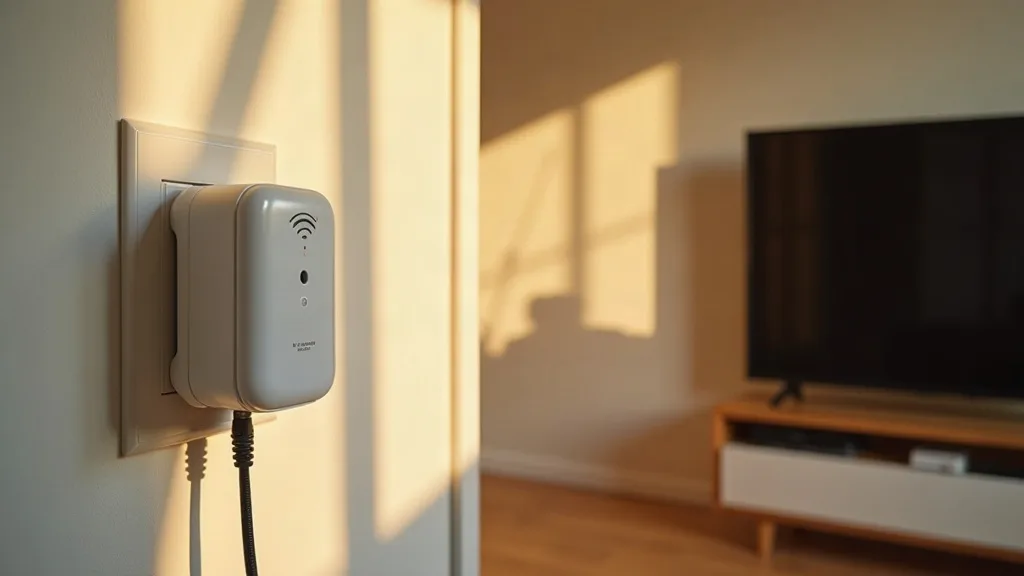
If you don't have a spare router but do have free power sockets in different rooms, powerline adapters are another near-free (or very low-cost secondhand) option. They send your internet signal through your home's electrical wiring, which works well in older houses where Wi-Fi struggles to get through solid walls. This guide on whether powerline adapters work explains the pros, cons, and setup process in more detail.
Step 5: Run an Ethernet Cable If You Can
This isn't free in terms of time, but it's one of the cheapest and most reliable fixes if you're willing to do a bit of DIY. Running a cable to a problem room and plugging in a cheap access point gives you full-strength, wired-quality Wi-Fi exactly where you need it.
- Decide which room needs the most help, usually a home office, garage conversion, or far bedroom.
- Plan a cable route, following skirting boards, through lofts, or down stairwells where possible.
- Follow a guide on how to run Ethernet cable through your house for tool recommendations and techniques that avoid damaging walls.
- Connect a basic access point or your old router (from Step 4) at the other end to broadcast Wi-Fi locally in that room.
This approach solves range problems permanently rather than patching them, and it tends to be far more reliable than relying on Wi-Fi alone to bridge the gap.
Step 6: Be Realistic About DIY Signal Boosters
You've probably seen the tutorials suggesting you fold a piece of kitchen foil, a drinks can, or a biscuit tin lid into a makeshift reflector and stick it behind your router's antennas. It's worth being honest here: these diy signal boosters for wifi make little to no real difference.
In a best-case scenario, a well-shaped reflector might nudge signal very slightly in one direction, but it will usually weaken it everywhere else at the same time, since you're just redirecting a fixed amount of signal rather than creating more of it. Router antennas are also designed to spread signal in a specific pattern, and homemade foil shapes rarely improve on that design. If anything, badly placed foil can block signal rather than help it.
If you're looking for how to make a Wi-Fi extender at home, repurposing an old router (Step 4) is a genuinely effective version of this idea. Foil and cardboard crafts are not.
Step 7: Test and Adjust Room by Room
Once you've made changes, check whether they've actually worked rather than assuming they have.
- Walk around your home with your phone open to a Wi-Fi signal strength app or just watch the signal bars.
- Note any rooms that still show weak signal.
- Compare this to how things were before you started, ideally using a note or screenshot taken beforehand.
- If one or two rooms are still consistently weak, that's the spot to focus your old router, powerline adapter, or Ethernet cable efforts on.
For a fuller comparison of your options at this stage, including whether a proper mesh system or access point makes more sense than patching things room by room, this guide on how to extend Wi-Fi range to every room covers the next steps in more depth.
Common Mistakes to Avoid
- Leaving the router on the floor in a corner, which cuts range far more than most people realise.
- Trusting foil reflectors or can-based reflectors to meaningfully extend wifi range diy. They rarely do much beyond redirecting a tiny amount of existing signal.
- Forgetting to update firmware, which can leave performance and security both worse than they need to be.
- Setting a repurposed old router to the same network name and password without checking it's configured correctly, which can cause devices to connect to the wrong one or drop out when moving between rooms.
- Assuming a stronger-looking signal icon always means a faster connection. Interference and channel congestion can slow things down even with full bars.
- Giving up on free fixes too early and buying hardware before trying placement, settings, and old kit first.
Conclusion
You can extend wifi range without extender hardware in most homes, just by moving the router to a better spot, tidying up its settings, and putting old equipment back to work. These fixes cost nothing or next to nothing, and they solve the root cause for a lot of common dead zones. If you've worked through all of these steps and certain rooms are still weak, that's the point where dedicated hardware like a mesh system or access point genuinely earns its keep, and it's worth comparing your options properly rather than guessing. This guide on Wi-Fi extenders, boosters, repeaters, and access points explains the differences so you buy the right thing once, rather than the wrong thing twice.
FAQ
Does moving my router really make a noticeable difference?
Yes, often more than any other single change. Router placement affects how far signal travels and how many walls or obstacles it has to pass through, so a central, elevated spot can solve problems that look like a range issue but are actually a placement issue.
Can I increase Wi-Fi range from my router just by changing settings?
To an extent. Switching to the 2.4GHz band for distant rooms, picking a quieter channel, and updating firmware can all help, especially if your current problems are caused by interference rather than raw distance. They won't add unlimited range, but they often fix patchy, inconsistent connections.
Do foil reflectors or homemade signal boosters actually work?
Not meaningfully. They may redirect a small amount of existing signal in one direction, but they weaken it elsewhere, and router antenna design already does this job better than homemade shapes can. If you want a genuine DIY option, repurposing an old router as an access point is far more effective.
What's the cheapest way to fix one really weak room?
If you already own an old router, setting it up as an access point in that room costs nothing beyond your time. If you don't have one, powerline adapters or a short Ethernet run are usually cheaper than buying a new extender, and more reliable too.
Is it worth running Ethernet cable just for Wi-Fi reasons?
If the weak room is somewhere you spend a lot of time, such as a home office, yes. A wired access point gives consistent, full-strength Wi-Fi in that room regardless of how far it is from the main router, and it tends to be more stable long-term than a wireless extender.
How do I know if I need an extender at all?
Work through placement, settings, and reused hardware first. If, after all that, you still have persistent dead zones, especially in a larger home or one with thick walls, that's a sign dedicated hardware like a mesh kit or access point is worth the investment rather than another extender purchase.