Network 39
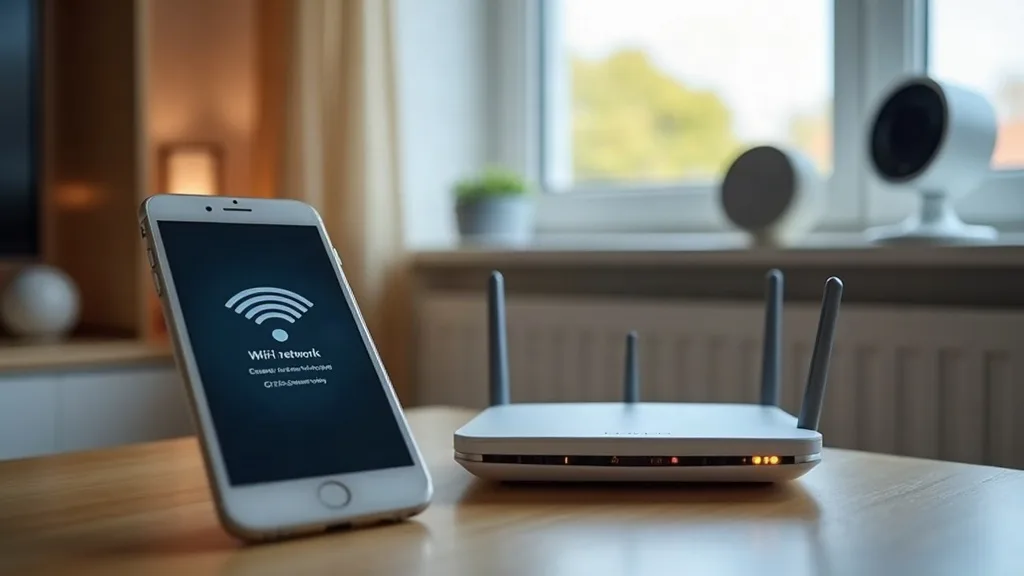
If you've ever had a smart plug get hacked, or just worry about a cheap camera phoning home to who knows where, setting up a separate network for smart devices is one of the best things you can do. It keeps your laptops and phones away from the dozens of gadgets that make up a modern smart home, so if one of them gets compromised, it can't easily reach your personal files or banking apps.
This guide walks through the main ways to isolate smart devices, whatever router you've got. Expect to spend 30 to 90 minutes on this, depending on how many devices you own and whether your router supports VLANs. There's no need to be a network engineer to follow along, though a bit of patience helps.
What You'll Need
- A router or mesh system (check if it supports guest networks or VLANs)
- A list of your smart devices and their apps
- Your Wi-Fi password and router admin login
- A phone or laptop to re-pair devices
- About half an hour of uninterrupted time, more if you have lots of gadgets
Step 1: Decide Which Isolation Method Suits Your Router
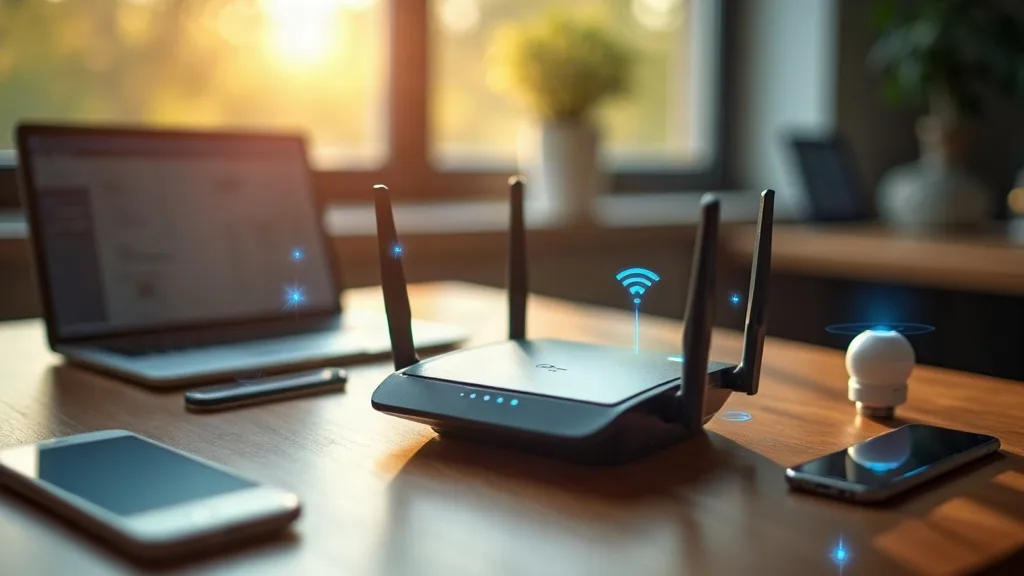
Not every router offers the same tools, so start by checking what you've got.
- Guest network: Most home routers have this built in. It's the easiest option but has limits (more on that below).
- Dedicated SSID with its own subnet: Some routers let you create a second main network, separate from guest mode, with more control.
- VLANs: Found on more advanced routers and mesh systems, or on separate hardware firewalls. This gives the most control but takes more setup.
If you're not sure what your router supports, check the admin panel under "Wireless" or "Network" settings, or look up your model online. If you're still deciding on hardware, our guide to best mesh Wi-Fi systems for UK homes covers which systems have stronger network segmentation features.
Step 2: Set Up a Guest Network (The Quick Option)
This is the simplest route for most households and works on nearly all consumer routers.
- Log into your router's admin page, usually at an address like 192.168.1.1.
- Find the "Guest Network" or "Guest Wi-Fi" section.
- Turn it on and give it a clear name, such as "HomeIoT" rather than the default.
- Set a strong password, different from your main network.
- Look for an option called "Client Isolation" or "Allow guests to see each other" and turn isolation on if you want devices to be unable to talk to each other too (useful for security, but it can break some smart home features, which we'll cover shortly).
- Save the settings and let the router restart if needed.
This method separates smart devices from your main devices, but it has a catch: most guest networks are designed to block guest devices from reaching your main network, not the other way round, and some don't allow devices on the guest network to talk to each other either. That second part matters for smart homes, since many devices need to discover each other to work properly.
Step 3: Create a Dedicated SSID for Smart Devices
If your router allows more than one standard network (not just a basic guest mode), this gives you more flexibility than a guest network.
- In your router settings, look for an option to add a second SSID or network profile.
- Name it something recognisable, like "SmartHome", and set a separate password.
- Assign it to the 2.4GHz band if possible. Most smart plugs, bulbs and sensors use 2.4GHz rather than 5GHz, since it has better range and lower power needs. If you're unsure why this matters, our comparison of 2.4GHz vs 5GHz Wi-Fi explains the difference in plain terms.
- Check whether the router lets you set firewall rules between this new network and your main one. Some allow one-way access (smart devices can't reach your main devices, but your phone can reach the smart network), which solves the casting and discovery problem we'll tackle in Step 5.
This approach takes a bit more setup than a guest network but usually gives you better control over who can talk to whom.
Step 4: Use VLANs for Full Control (Advanced Option)
If you have a router that supports VLANs (virtual local area networks), such as many mesh systems with advanced modes, or if you're running a home lab setup, this is the most flexible method.
- Access the advanced networking settings in your router or controller software.
- Create a new VLAN and give it an ID number, such as VLAN 20.
- Assign your smart devices' SSID to this VLAN.
- Set up firewall rules to control traffic between VLANs. A common setup is to block the IoT VLAN from reaching your main VLAN, but allow specific ports through for casting and app control.
- If you're running your own firewall or router software on a small home server, this is often easier to manage through a dashboard than through consumer router menus. If that interests you, our guide to home lab for beginners is a good starting point, and pairing it with a capable mini PC for a home lab gives you room to run more advanced network tools.
VLANs take longer to configure than a guest network, often an hour or more the first time, but they give you the cleanest separation without losing all the convenience features.
Step 5: Fix Casting and Discovery Problems
This is the step most guides skip, and it's usually where people get frustrated. Isolating smart devices often breaks things like casting to a smart TV, finding devices in an app, or voice assistants locating speakers. This happens because many of these features rely on discovery protocols (like mDNS or UPnP) that need devices on the same network segment to see each other.
Here's how to work around it, depending on your setup:
- Allow mDNS forwarding: Some routers and mesh systems have a setting to forward mDNS traffic between networks. This lets devices on different SSIDs still discover each other for casting, without giving them full access to your files or computers.
- Keep casting devices on the same network as source devices: If you cast from your phone to a smart TV often, consider keeping both on the smart home network rather than splitting them up, or add an exception for that specific traffic.
- Use the manufacturer's bridge or hub: Many brands (like several using Matter or Thread) use a central hub that talks across networks on your behalf. If you're building a new smart home setup, it's worth understanding how these standards work, and our guide on Matter and Thread for smart home beginners explains how they can simplify cross-network communication.
- Check app-specific settings: Some apps (like those for streaming or smart speakers) have a manual "add device" option using an IP address, which sidesteps automatic discovery issues entirely.
- Test one device at a time: After changing network settings, reconnect and test one device before moving on to the next. It's much easier to spot which device is causing a casting issue if you're not juggling six changes at once.
If you're still struggling to get a device to show up at all, our troubleshooting guide on why won't my smart device connect to Wi-Fi covers common connection issues separate from network isolation.
Step 6: Move Your Devices Over
Once your new network is ready, it's time to actually move devices across.
- Open each device's app and look for a Wi-Fi or network settings option.
- Most smart devices need to be put into pairing mode again (check the manual, it's often a button press or a light pattern).
- Connect to the new SmartHome network through the app, using the new password.
- Test the device works as expected, including any voice assistant or app controls.
- Repeat for each device, working through plugs, bulbs, cameras, sensors and speakers one by one.
This part takes the longest if you have a lot of devices, often 5 to 10 minutes each the first time through. If you're setting up a smart home from scratch rather than moving existing devices, our beginner's guide to smart home Wi-Fi setup covers the basics alongside this isolation step.
Common Mistakes to Avoid
- Turning on full client isolation without testing casting first. This can silently break features you use daily, like casting from your phone to a speaker.
- Forgetting to update the Wi-Fi password in every app. Devices left on the old password will just show as offline, which can be confusing to diagnose.
- Putting everything on 5GHz. Many cheap smart devices only support 2.4GHz, so they simply won't connect if that's all you offer.
- Not labelling the new network clearly. A vague SSID name makes it harder to spot which devices are where when troubleshooting later.
- Skipping firmware updates during the move. While devices are disconnected anyway, it's a good moment to check for updates, since you're already in the apps.
Conclusion
Setting up a separate network for smart devices takes a bit of planning, but it's one of the more worthwhile changes you can make to a home network. Whether you use a simple guest network, a dedicated SSID, or full VLANs, the goal is the same: keep your everyday devices safer by limiting what smart gadgets can reach. The casting and discovery hiccups are annoying but usually fixable with a few tweaks, so don't let them put you off finishing the job.
FAQ
Will isolating my smart devices slow down my Wi-Fi?
No, separating devices onto their own network or VLAN doesn't slow things down. If anything, it can help, since you're spreading devices across different network segments rather than having everything compete on one.
Can I use a separate network without buying a new router?
Yes, in most cases. Guest networks are built into nearly every consumer router, and many mid-range routers also support a second SSID or basic VLANs. Check your router's settings before assuming you need new hardware.
Why can't my phone find my smart TV after I set up the new network?
This is usually a discovery issue, caused by the networks being too isolated for casting protocols to work. Try enabling mDNS forwarding if your router supports it, or keep casting devices on the same network segment.
Should I put security cameras on the same network as smart plugs?
It's fine to group most low-risk devices together, but if you have cameras storing sensitive footage, some people prefer giving them their own VLAN with stricter rules. It depends on how cautious you want to be.
Do I need a separate network for Matter or Thread devices?
Not necessarily. Many Matter and Thread devices use a hub that handles cross-network communication for you, which can reduce some of the discovery headaches. It's still worth isolating them from your main devices for security reasons.
How do I know if my isolation setup is actually working?
Try connecting a device on your main network and attempt to access a smart device's local web interface or app directly by IP address. If it's properly isolated, that connection should fail or time out.