Network 39
Got a new router, changed your Wi-Fi password, or moved house? Suddenly your smart plugs stop responding and the app just shows a sad grey icon. So if you're wondering "how do I change the Wi-Fi on my smart plug", the good news is you almost never need to factory reset everything or start your whole smart home setup from scratch. In most cases, you can get a plug talking to a new network in under five minutes.
This guide walks through the general method that works for Kasa, TP-Link Tapo, Xiaomi, Meross, and most other popular smart plugs, plus a handy trick that avoids reconfiguring every device at once. If you prefer local control without cloud accounts, see our guide to smart plugs for Home Assistant. Expect to spend 5 to 15 minutes per plug, and no tools are needed. Difficulty is easy, though it helps to know your router's admin password if you're changing network settings too.
What You'll Need
- Your smart plug and its companion app already installed on your phone
- The new Wi-Fi network name (SSID) and password
- A phone or tablet connected to the same 2.4GHz network you want the plug to join
- Access to your router settings, in case you want to rename your network instead
- A few minutes of patience if the plug needs a factory reset first
Step 1: Decide Whether You Actually Need to Reconnect Each Plug
Before you start resetting things, work out what actually changed.
- If you only changed your Wi-Fi password but kept the same network name, some plugs will simply drop offline and need the new password entered through the app, no reset required.
- If you changed the network name (SSID), got a new router, or switched ISPs, you'll usually need to forget the plug in the app and set it up again.
- If you're moving the plug to a different network entirely (say, a guest network or a mesh system), treat it as a fresh setup.
Knowing which situation you're in saves you from unnecessary resets.
Step 2: Try the Simple Trick First, Keep the Same Network Name
Here's the shortcut most people miss. If you're replacing your router, you can often avoid reconfiguring any smart devices at all.
- Log into your new router's settings page.
- Find the wireless settings section.
- Set the SSID (network name) and password to exactly match your old network.
- Save and reboot the router.
Your smart plugs, and most other smart home gear, will often reconnect automatically because as far as they're concerned, nothing has changed. This trick is especially useful if you have a dozen or more smart devices and don't fancy an afternoon of re-pairing. It only works, though, if the new router supports the same Wi-Fi band your plugs use, which is almost always 2.4GHz. For more on why that band matters so much for smart home gear, see our guide to smart home Wi-Fi setup for beginners.
Step 3: Check Your Plug Is on 2.4GHz, Not 5GHz
This trips up a lot of people, especially after upgrading to a newer router or mesh system.
Almost all smart plugs only work on 2.4GHz Wi-Fi, even if your router broadcasts a combined or "smart" network name that mixes both bands. If your new router or mesh system uses a single SSID for both 2.4GHz and 5GHz, the plug might try to join the wrong band and fail silently.
Fixes:
- Temporarily split your network into separate 2.4GHz and 5GHz SSIDs in the router settings during setup, then merge them back afterwards if you prefer one network name.
- Or keep them permanently separate if you have a lot of older smart home devices.
If you're unsure which protocol your wider smart home setup should lean on going forward, it's worth reading up on Zigbee vs Z-Wave vs Wi-Fi vs Thread, since mixing protocols can actually reduce how much you rely on Wi-Fi for every device.
Step 4: Factory Reset the Smart Plug (If Needed)
If the password trick didn't work, or you're moving to a genuinely different network, a reset is the fastest path forward. Reset steps vary slightly by brand.
Kasa Smart Plug Wi-Fi Reset
- Make sure the plug is powered on and plugged into a socket.
- Press and hold the power button on the plug for about 5 seconds, until the LED starts flashing amber and green rapidly.
- Open the Kasa app, choose "Add Device", and select your plug model.
- Follow the prompts to connect the plug to your phone's hotspot briefly, then hand it your new Wi-Fi name and password.
This handles both a Kasa smart plug Wi-Fi change and a straightforward Kasa smart plug Wi-Fi password update in one go.
TP-Link Tapo Smart Plug Reset
- Hold the power button for roughly 5 seconds until the light flashes.
- Open the Tapo app and tap the plus icon to add a new device.
- Connect to the plug's temporary Wi-Fi network when prompted.
- Enter your home network's new credentials.
Xiaomi Smart Plug Wi-Fi Reset
Xiaomi plugs usually reset through a small pinhole button or a long press, depending on the model.
- Press and hold the reset button (or the power button on some models) for 5 to 10 seconds until the LED blinks rapidly, usually blue or orange.
- Open the Mi Home or Xiaomi Home app.
- Tap "Add Device" and select the plug category.
- Connect your phone to the plug's temporary network, then enter your new Wi-Fi details.
If you manage several Xiaomi smart home devices, note that changing Wi-Fi on one plug doesn't automatically update the others. You'll need to repeat this for each device, including smart cameras and sensors tied to the Xiaomi ecosystem.
Meross, Wyze, and Other Generic Smart Plugs
Most budget brands follow a near-identical pattern:
- Hold the power button for 5 to 8 seconds until the LED flashes a specific colour (check the plug's manual, as colours vary).
- Open the matching app and start the add-device process.
- Connect to the plug's broadcast network temporarily.
- Submit your new Wi-Fi name and password.
Step 5: Reconnect the Plug Through the App
Once reset, every brand follows roughly the same app flow:
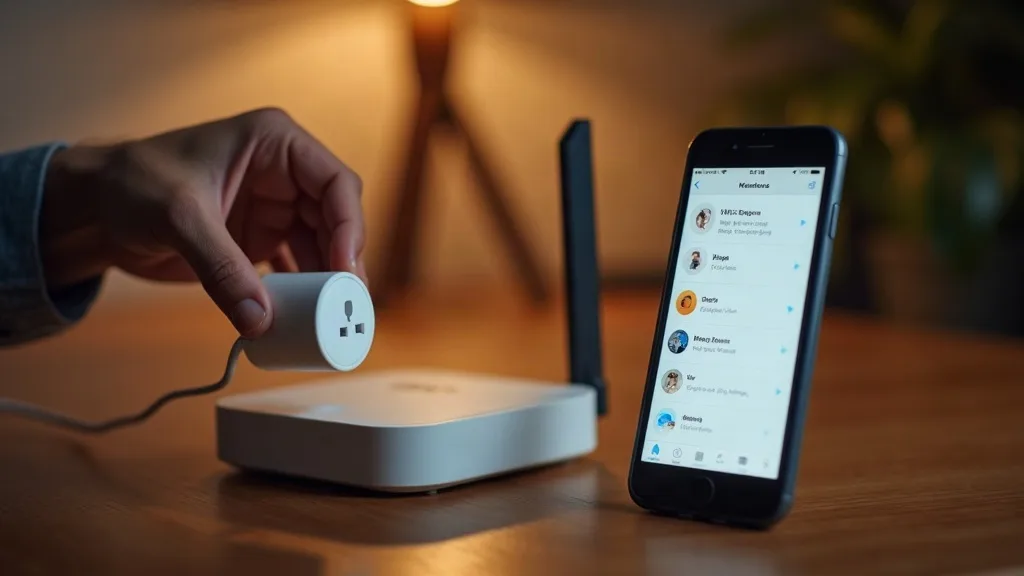
- Open the smart plug's app and tap "Add Device" or the plus icon.
- Select the correct plug model from the list.
- Put the plug into pairing mode if the app asks you to (usually another short button press).
- Your phone will temporarily connect to the plug's own hidden Wi-Fi network.
- Choose your new home network from the list and enter the password.
- Wait for the app to confirm the plug has joined your network, which can take anywhere from 10 seconds to a couple of minutes.
- Rename the device and reassign it to any rooms or scenes you had set up before.
If a plug refuses to show up on the new network even after a reset, double check that your phone itself isn't connected to a 5GHz-only band, and that your router isn't blocking new device connections through a guest network isolation setting.
Step 6: Reconnect Any Automations or Voice Assistants
Changing Wi-Fi can quietly break links to Alexa, Google Home, or Apple Home, even after the plug itself reconnects.
- Open your voice assistant app.
- Go to the linked smart home skill or service for your plug brand.
- Unlink and relink it if devices show as offline or unresponsive.
- Re-run device discovery so routines and schedules reattach properly.
This step gets missed a lot, and it's usually why a plug works fine in its own app but Alexa still says it can't find it.
Common Mistakes to Avoid
- Trying to connect the plug to a 5GHz-only network, which simply won't work for the vast majority of smart plugs.
- Forgetting to reset the plug before adding it to a new network, which leaves it stuck trying to find a network that no longer exists.
- Using a guest network with client isolation turned on, which blocks the plug and your phone from talking to each other during setup.
- Changing the Wi-Fi password without updating the plug, then assuming it's broken when it's just waiting for new credentials.
- Not updating voice assistant links after reconnecting the plug, leading to "device unresponsive" errors despite the plug working fine in its own app.
- Resetting every device in the house at once instead of trying the matching-SSID trick first, which can save a lot of time.
Conclusion
So, how do you change the Wi-Fi on your smart plug without a headache? Start by checking whether a quick password update will do, try keeping your old network name if you've got a new router, and only reset the plug itself when nothing else works. Once you've done one plug, the rest tend to go much faster because you already know the pattern for your brand. And if you're setting up more smart devices soon, it's worth reading about why smart devices sometimes refuse to connect to Wi-Fi at all, since many of the same fixes apply.
FAQ
How do I change the Wi-Fi password on a Kasa smart plug without resetting it?
If the network name stays the same, Kasa plugs sometimes reconnect automatically once your router comes back online with the new password. If they don't reconnect within a few minutes, open the Kasa app, select the plug, and look for a "change Wi-Fi" or reconfigure option before resorting to a full reset.
Why won't my smart plug connect to my new router?
The most common reason is a 5GHz-only network, since most smart plugs need 2.4GHz. Other common culprits include guest network isolation, a Wi-Fi name with special characters, or the plug still being registered to the old network and needing a reset first.
Do I need to reset every smart plug if I get a new router?
Not necessarily. If you set the new router's Wi-Fi name and password to match your old one exactly, many plugs reconnect on their own without any reset at all.
Can I change the Wi-Fi on a Xiaomi smart plug through the app without a factory reset?
Sometimes, if you've only changed the password and not the network name. Open Mi Home or Xiaomi Home, select the device, and check for a Wi-Fi settings option. If it's greyed out or doesn't work, a reset followed by re-adding the device is the more reliable route.
How long does it take to switch a smart plug to a new Wi-Fi network?
Usually 5 to 10 minutes per plug, including the reset and the app setup process. It can take longer the first time while you get used to the steps for your particular brand.
Will changing my Wi-Fi affect my smart plug schedules and automations?
The schedules stored in the app itself usually survive, but automations linked through a voice assistant like Alexa or Google Home may need to be relinked after the plug rejoins the network.