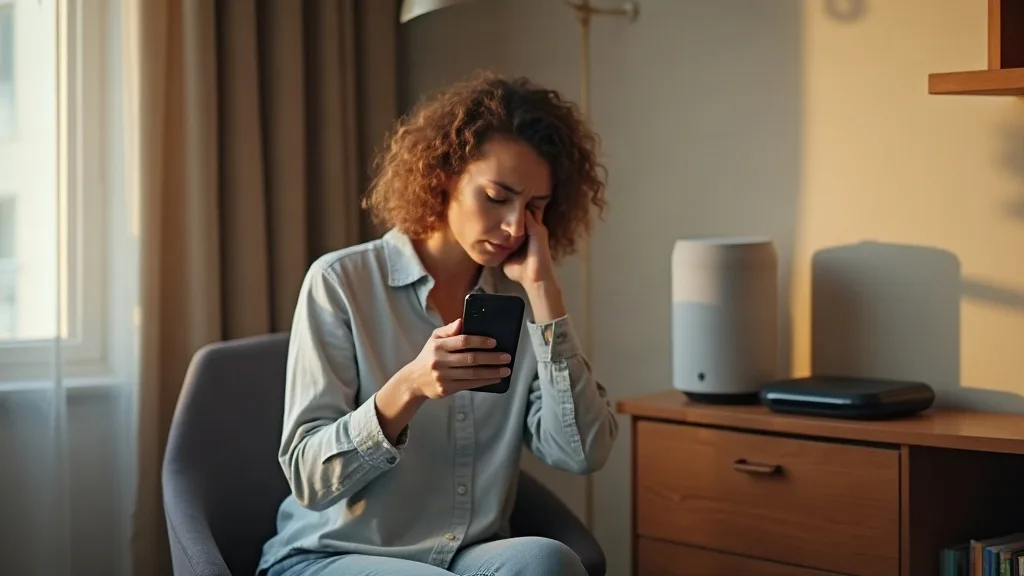
If your smart device won't connect to Wi-Fi, you're in good company. Smart plugs, bulbs, cameras and speakers all have a habit of getting stuck on the pairing screen, flashing an annoyed little light at you while the app spins endlessly. The good news is that most of these failures come down to a handful of common causes, and you can work through them methodically rather than guessing.
This guide walks you through the most likely culprits, from Wi-Fi bands to password quirks to app permissions, so you can get your device online without starting from scratch. Expect to spend 10 to 30 minutes working through this, depending on how stubborn your device is. No technical background needed, just a bit of patience.
What You'll Need
- Your Wi-Fi network name (SSID) and password
- The smart device and its companion app installed on your phone
- Access to your router's settings (usually via an app or a web browser)
- Your phone's Wi-Fi and Bluetooth turned on
- A few minutes near the router for initial setup
Step 1: Check Which Wi-Fi Band Your Device Needs
Most smart home gadgets, especially budget plugs, bulbs and sensors, only work on the 2.4GHz band. They can't see or join a 5GHz network at all. If your router broadcasts a single combined network name for both bands, the device might be trying to connect to the wrong one without you realising.
- Check the product box or app for a mention of "2.4GHz only".
- Log into your router settings and see whether your 2.4GHz and 5GHz networks have separate names (SSIDs). If they're combined under one name, consider splitting them during setup, then join your smart device to the 2.4GHz option.
- If you're not sure which band does what, our guide on 2.4GHz vs 5GHz Wi-Fi: Which Should You Use? explains it in plain terms.
This single fix solves a surprising number of "smart device won't connect to wifi" problems, so it's worth ruling out first.
Step 2: Disable Band Steering Temporarily
Band steering is a router feature that automatically pushes devices to whichever band it thinks is best. It's handy for phones and laptops, but it confuses a lot of smart home gear during setup, because the device expects a straightforward 2.4GHz handshake and instead gets bounced around.
- Open your router's admin app or web interface.
- Look for a setting called "Band Steering", "Smart Connect" or similar, often under wireless settings.
- Turn it off temporarily, just for the duration of setup.
- Once your device has successfully connected and shows up in its app, you can turn band steering back on. Most devices stay connected to whichever band they joined first.
If your router doesn't have an obvious toggle for this, check its manual or support site, since the wording varies a lot between manufacturers.
Step 3: Double-Check the Password and Network Name
This sounds obvious, but it catches people out constantly. Smart device setup screens are often small, fiddly and use an on-screen keyboard that doesn't always match what you'd type elsewhere.
- Retype your Wi-Fi password carefully in the app, rather than relying on autofill or memory.
- Watch out for characters that look similar, like a capital "O" and zero, or lowercase "l" and capital "I".
- Avoid special characters such as
! " £ $ % & * ( )in your Wi-Fi password if possible. Some smart devices have buggy parsing and choke on certain symbols, even though your phone and laptop handle them fine. - Check your network name doesn't contain spaces, emoji or unusual punctuation, as these can also trip up cheaper hardware.
If you've been meaning to tidy up your network setup more generally, our Smart Home Wi-Fi Setup: A Beginner's Guide covers naming conventions and password choices that play nicely with smart devices.
Step 4: Move the Device Closer to the Router
Smart home gadgets often have weaker Wi-Fi radios than phones or laptops, so they need a stronger signal to complete setup, even if they'll cope fine once they're paired and running.
- Move the device within 2 to 3 metres of your router for the initial setup process.
- Avoid placing it near metal objects, mirrors or thick walls during pairing.
- Once it's successfully connected, move it to its permanent location and check it still shows as online in the app.
- If it drops offline once moved, you likely have a coverage gap rather than a setup problem. In that case, a mesh Wi-Fi system might solve the issue permanently, and it's worth comparing that against a simple range extender depending on your home's layout.
Step 5: Review Router Security and Firewall Settings
Some routers have settings that unintentionally block new devices from joining, particularly if you've tightened security recently.
- Check whether your router has a "guest network isolation" or "AP isolation" feature enabled, as this can stop devices from communicating with your phone even when both are connected.
- Look at your firewall or parental control settings for anything that might block unrecognised devices by default.
- Confirm your router isn't set to WPA3-only encryption, since many older or cheaper smart devices only understand WPA2. Switching to WPA2/WPA3 mixed mode often fixes stubborn pairing failures.
- If you've recently changed your Wi-Fi password or security settings as part of tightening things up, our guide on how to secure your home Wi-Fi network explains which settings are safe to adjust without causing compatibility headaches.
Step 6: Check App Permissions on Your Phone
A lot of smart device setup actually happens via your phone's own Wi-Fi and Bluetooth connection, not the device's. If the app doesn't have the permissions it needs, pairing fails silently or gets stuck with no clear error message.
- Go to your phone's settings and find the smart home app in the list of installed apps.
- Make sure location permissions are set to "Allow" or "While using the app". Both Android and iOS use location access to let apps scan for nearby Wi-Fi networks, oddly enough.
- Check that Bluetooth permission is enabled, since many devices use Bluetooth for the initial handshake before switching to Wi-Fi.
- Confirm local network access is allowed, particularly on iPhones, which ask separately for permission to talk to devices on your home network.
- Restart the app after changing any permissions, as some apps don't pick up the change until relaunched.
Step 7: Restart Everything in the Right Order
Sometimes the fix really is just turning things off and on again, but doing it in the right sequence matters more than people expect.
- Turn off the smart device completely, either by unplugging it or holding its reset button if it has one.
- Restart your router and wait a full two minutes for it to fully reboot and rebroadcast its networks.
- Restart your phone to clear any cached Wi-Fi or Bluetooth connection states.
- Power the smart device back on and reopen the app to start setup again.
If this still doesn't work and you suspect your router itself is the weak link, it might be time to check whether your ISP router is good enough, since some budget routers struggle with more than a handful of connected devices.
Step 8: Reset the Device and Try Again
If none of the above has worked, a factory reset clears out any corrupted setup data and gives you a clean slate.
- Find the reset method for your specific device, usually a button held for 5 to 10 seconds, listed in the manual or app support pages.
- Wait for the light pattern to change, indicating the device is back in pairing mode.
- Remove the device from the app if it still shows up there, so you're not trying to re-add a ghost entry.
- Start the setup process from scratch, ideally close to the router with band steering disabled, as covered in the earlier steps.
Common Mistakes to Avoid
- Trying to connect a 2.4GHz-only device to a 5GHz network, which simply won't work no matter how many times you retry.
- Using a Wi-Fi password with symbols the device's app can't parse correctly.
- Leaving band steering or AP isolation switched on during setup, then wondering why pairing times out.
- Setting the device up far from the router, then being surprised when it drops offline after moving it.
- Ignoring app permission prompts on your phone, which quietly blocks the scanning process the app needs.
- Giving up after one failed attempt instead of restarting everything in the correct order first.
Conclusion
A smart device that won't connect to Wi-Fi is frustrating, but it's rarely broken. More often than not, it's a mismatched band, a tricky password character, a permission toggle, or a router setting quietly getting in the way. Work through the steps above in order, and you'll usually find the fix within the first few attempts. If your whole home network still feels patchy once the device is connected, it might be worth looking at your broader setup, including whether a mesh system or a few tweaks from our Wi-Fi keeps dropping guide would help everything run more smoothly.
FAQ
Why does my smart plug keep saying "connection failed"?
This usually points to a band mismatch (trying to join 5GHz instead of 2.4GHz) or a password with unsupported characters. Work through Steps 1 and 3 first, as they solve this most often.
Can I use the same Wi-Fi name for 2.4GHz and 5GHz?
You can, and many modern routers do this by default using band steering. However, it's often easier to temporarily separate the names during smart device setup, then combine them again afterwards if you prefer.
Does distance from the router really matter for smart devices?
Yes, more than you'd expect. Many smart home gadgets have weaker antennas than phones or laptops, so they need a stronger signal just to complete the initial setup handshake, even if they'll run fine further away once connected.
Why does my phone need location permission to set up a Wi-Fi device?
Both Android and iOS tie Wi-Fi network scanning to location permissions for privacy reasons. Without it granted, the smart home app can't see or select nearby networks, which blocks setup before it even starts.
My device connected once but keeps dropping off. What's wrong?
This is usually a coverage or interference issue rather than a setup problem. Check its distance from the router, and consider whether a mesh system or extender would give it a more stable signal throughout the day.
Should I just buy a new router if nothing works?
Not necessarily. Try all the steps above first, since most failures are settings-related rather than hardware faults. If your router is several years old or struggles with many connected devices, it might genuinely be worth an upgrade.