Network 39
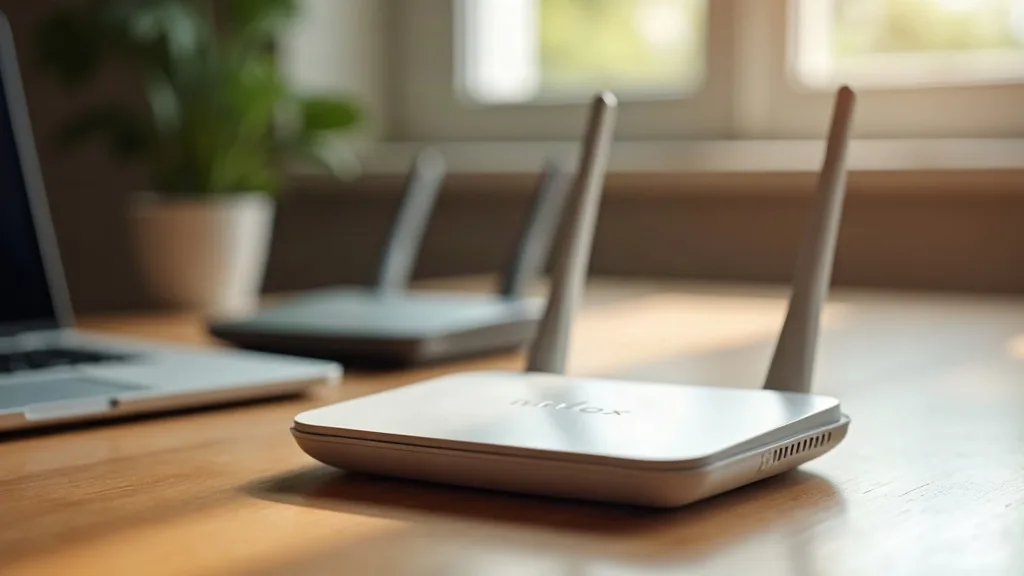
Got an old router gathering dust in a drawer? Don't bin it. With a bit of setup, you can extend wifi range with another router instead of buying a new Wi-Fi extender with an Ethernet port or mesh system. It takes about 20 to 40 minutes, and the hardest part is usually finding the right settings menu. This guide walks you through both the wired and wireless methods, plus what to expect from each.
What You'll Need
- An old or spare router (almost any brand works, even a different make to your main one)
- Your main router's admin login details
- The old router's admin login details (often printed on a sticker underneath)
- An Ethernet cable, if you're running a wired connection between routers
- A laptop or phone to access the router settings
- About 20 to 40 minutes
Step 1: Decide Between a Wired or Wireless Setup
Before you touch any settings, work out how you'll connect the two routers, because this changes everything that follows.
- Wired (recommended): if you can run an Ethernet cable between your main router and the spare one, do it. This turns the old router into an access point, giving you a second, full-strength wifi signal with no speed loss.
- Wireless: if running a cable isn't practical, you can set the old router up as a wireless repeater instead. It's more convenient but comes with a real speed penalty, since the router has to receive and rebroadcast the signal using the same radio.
If you've never run cable through a house before, it's easier than it sounds. Our guide on how to run Ethernet cable through your house covers drilling, routing cable along skirting boards, and avoiding the obvious trip hazards.
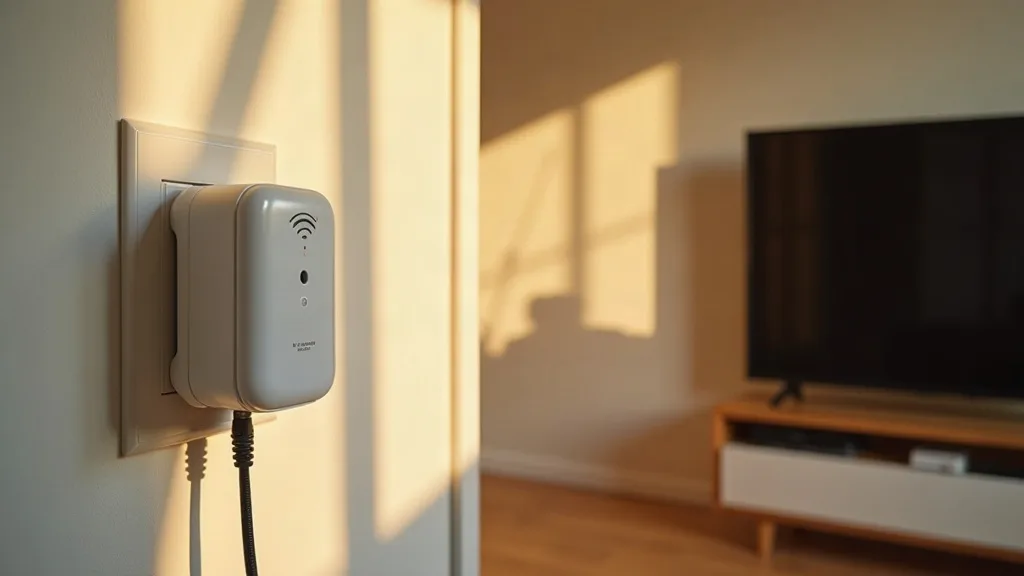
If running a cable truly isn't an option, powerline adapters are worth considering as an alternative to a wireless repeater setup. Have a read of do powerline adapters work to see if your home's wiring is suitable.
Step 2: Reset the Old Router and Check Its Firmware
Old routers often have leftover settings from their previous life with your ISP. Start fresh.
- Find the small reset button (usually recessed) and hold it for 10 seconds until the lights flash.
- Once it reboots, log into the admin panel. The default address is usually something like 192.168.0.1 or 192.168.1.1, printed on the router itself.
- If there's a firmware update available, install it now. Old routers that have sat in a drawer for years are often several updates behind.
- Note down the router's current IP address range, you'll need this in Step 3.
Step 3: Change the Old Router's IP Address
This is the step people skip, and it's the one that causes the most headaches later. Two routers on the same network can't both use the default IP address, or you'll get connection conflicts.
- In the old router's settings, find the LAN or network setup page.
- Change its IP address so it's on the same subnet as your main router, but with a different final number. For example, if your main router is 192.168.1.1, set the old one to 192.168.1.2.
- Save the change. The router will likely reboot and its address will change, so you may need to reconnect using the new IP.
Step 4: Turn Off DHCP on the Old Router
Your main router already hands out IP addresses to every device on your network (this is called DHCP). If the old router does the same job, you'll end up with two devices arguing over who's in charge, which causes dropped connections and devices that can't get online.
- In the old router's settings, find the DHCP section (usually under LAN or Network settings).
- Switch DHCP off and save.
- Only your main router should have DHCP enabled from this point on.
Step 5 (Wired Setup): Connect the Routers and Configure as an Access Point
If you're running a cable, this is where the old router becomes a proper access point rather than a repeater, giving you the best possible performance.
- Connect an Ethernet cable from one of the main router's LAN ports to a LAN port on the old router. Don't use the old router's WAN or internet port, this is a common mistake that stops everything working.
- On the old router, turn off the wireless router function if there's an option for it, sometimes labelled "AP mode" or "bridge mode." Not every router has this, but it simplifies things if yours does.
- Set up a wifi network name (SSID) and password on the old router. You can either match your main router's network name exactly, which lets devices roam between the two automatically, or give it a different name if you want to choose manually which one you connect to.
- Save your settings and place the old router in the area that needs better coverage.
- Test by connecting a device near the old router and checking you get internet access.
Giving both routers the same network name works well in most homes and is the closest you'll get to a proper mesh system without buying one. For a broader look at mixing and matching extenders, powerline kit and access points to cover a whole house, see our guide to extending wifi range to every room.
Step 6 (Wireless Setup): Configure as a Wireless Repeater
If cabling isn't possible, you can still extend wifi range with another router wirelessly. It's less reliable than a wired setup, but it's better than nothing in a pinch.
- Check if your old router has a "repeater," "bridge" or "WDS" mode in its settings. Not all routers support this, particularly budget ISP-supplied ones, so check the manual or search the model number online if you're not sure.
- If it does, follow the on-screen setup to connect it wirelessly to your main router's wifi network, entering your main network's password when prompted.
- Position the old router roughly halfway between your main router and the area with weak signal. It needs a reasonably strong connection to the main router to have anything worth repeating.
- Give the repeated network its own name if the router doesn't do this automatically, so you can tell which one you're connected to if there are problems.
- Test speeds near the repeater and compare them to speeds near your main router. Expect a noticeable drop, often up to 50%, since the router is splitting its attention between receiving and rebroadcasting.
If your specific router doesn't offer a built-in repeater mode, some people flash third-party firmware like DD-WRT or OpenWrt to unlock the feature. That's a more technical path and worth researching separately if you're comfortable with it.
Common Mistakes to Avoid
- Plugging the cable into the WAN port instead of a LAN port. This is the single most common setup error and stops the access point working entirely.
- Leaving DHCP switched on on both routers. This causes random disconnections and devices that can't get an IP address.
- Using two routers with the same IP address. You'll get access conflicts and won't be able to log into either one reliably.
- Expecting wireless repeater mode to match wired performance. It won't, and that's normal, not a fault.
- Placing the old router too far from the main one in a wireless setup. It needs a strong signal to repeat; a weak one just gets repeated weaker.
- Forgetting to update firmware before setup. Old firmware can have bugs that make the whole process harder than it needs to be.
Conclusion
An old router isn't just e-waste, it's a free way to extend wifi range with another router and fix dead spots without spending anything. A wired access point setup gives you near-identical performance to your main router, while a wireless repeater is a reasonable fallback when cabling isn't an option. Either way, the key steps are the same: reset it, change its IP address, turn off DHCP, and connect it properly. If you still have patchy coverage after trying this, it might be worth comparing other options in our guide to extending wifi range to every room, or troubleshooting an existing extender with our fix guide.
FAQ
Can you extend wifi range with another router?
Yes. Almost any router can be repurposed as either an access point (wired) or a repeater (wireless), as long as you can access its admin settings. It doesn't need to match the brand or model of your main router.
Can wifi extender be used as a router?
Not usually in reverse, but the logic works the other way round well: a spare router can act as an extender. Dedicated wifi extenders are generally built only to repeat a signal, not to run as a standalone router with full routing features.
How much speed do I lose with a wireless repeater setup?
It varies depending on the router and distance, but expect a meaningful drop, sometimes up to half the speed, because the router handles both receiving and rebroadcasting on the same wireless radio. A wired access point setup avoids this entirely.
How do I extend wifi range in my house with another router if I can't run a cable?
Use the old router's repeater or bridge mode if it has one, positioned roughly halfway between your main router and the weak spot. If your router doesn't support this, powerline adapters are a solid alternative, explained in our guide on whether powerline adapters work.
Do I need the same brand of router for this to work?
No. Mixing brands is fine for both access point and repeater setups, since they communicate using standard wifi and networking protocols rather than anything proprietary.
Will I need to change settings on my main router too?
Usually not for a wired access point setup, since the old router does all the work. For a wireless repeater, you'll just need your main router's wifi password handy during setup, nothing else typically needs changing.