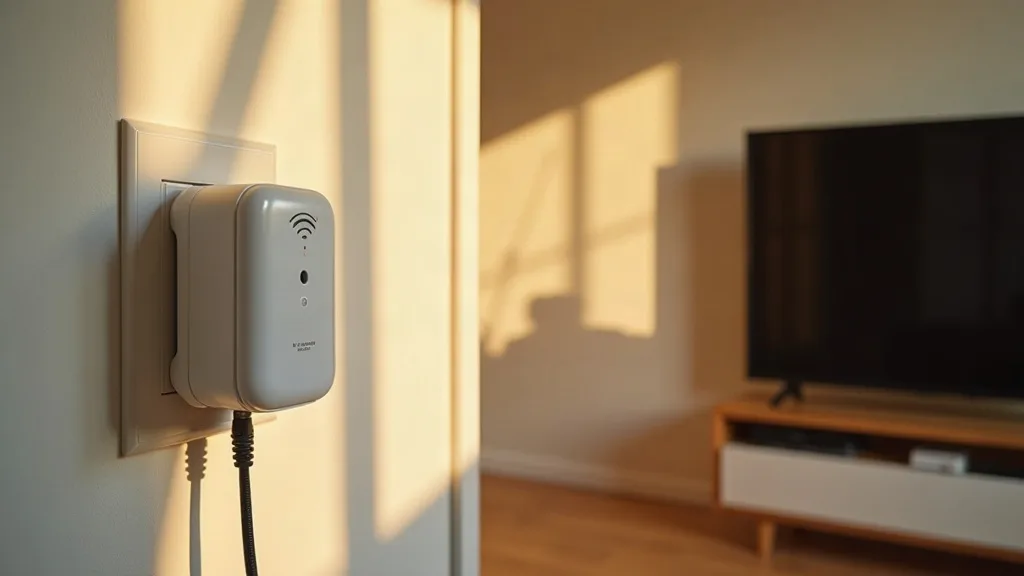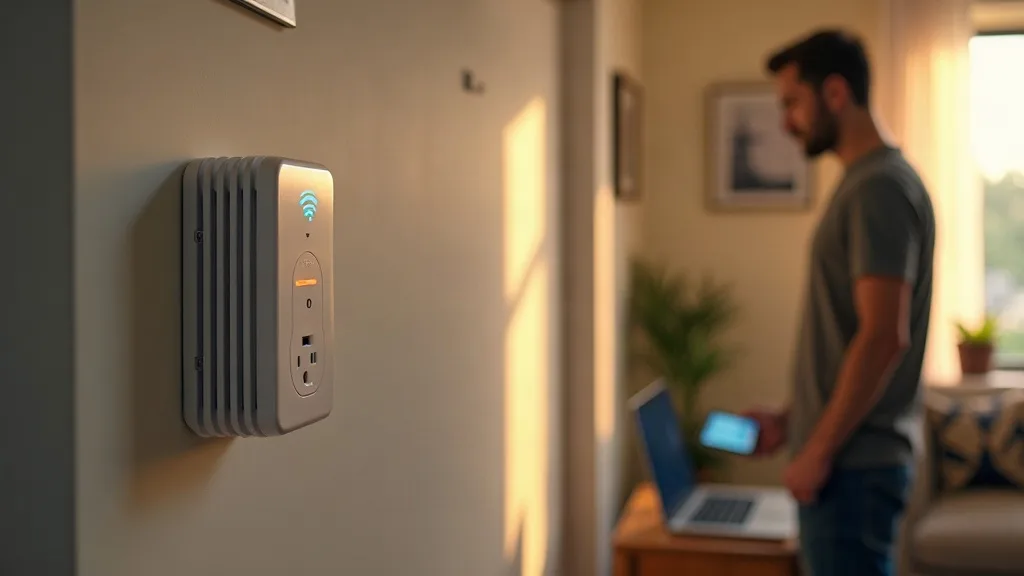
A Wi-Fi extender that's stopped working is one of those problems that creeps up on you. One day you've got signal in the back bedroom, the next day your phone is stuck loading a spinning wheel. If your wifi extender not working has become a daily headache, you're not alone, and the good news is that most faults come down to a handful of common causes. This guide walks through them one by one, from extenders that won't connect at all to ones that drop out every hour or so.
Give yourself about 20 to 30 minutes to work through this properly. None of it requires technical skill, just patience and access to your router and extender.
What You'll Need
- Your Wi-Fi extender and its power adapter
- Access to your main router (and its login details, usually printed on a sticker)
- A phone, tablet or laptop to test with
- The extender's app or web login, if it has one
- A few minutes near both the router and the extender
Step 1: Restart Everything in the Right Order
This sounds too simple to be useful, but it fixes a surprising number of extender problems. The trick is doing it in the correct order.
- Unplug the extender first.
- Unplug the main router too, and leave both off for about 30 seconds.
- Plug the router back in and wait for it to fully reconnect to the internet (usually 1 to 2 minutes).
- Plug the extender back in and give it another 2 to 3 minutes to reconnect to the router.
Restarting the router before the extender matters because the extender needs a stable signal to lock onto. If you power it on first, it can grab a weak or outdated connection and behave oddly from that point on. If you're the sort of person who'd rather not keep walking over to the router to restart it, it's worth reading about restarting your router remotely so you can sort this out from your phone next time.
Step 2: Check the Extender's Position
A huge number of "wifi extender not working" complaints are actually position problems rather than technical faults. Extenders need a strong signal from the router to repeat, and they need to be close enough to your devices to pass that signal on.
- Move the extender roughly halfway between the router and the area with poor signal, not right at the edge of your home.
- Avoid placing it behind the TV, inside a cabinet, or on the floor. Walls, metal and large appliances all weaken the signal.
- Check the extender's signal strength light, most models have one. If it's showing red or amber rather than green, it's too far from the router.
- Try a spot with a direct line of sight to the router, even if that means temporarily testing it on a different shelf or table.
If you've moved it around and still can't get reliable coverage in certain rooms, your extender might simply be the wrong tool for your layout. It's worth reading how to extend Wi-Fi range to every room to see whether a mesh system or a wired backhaul would serve you better long term.
Step 3: Confirm the Extender's Network Is Showing Up
If your extender's network name isn't appearing on your devices at all, a few things could be going on.
- Check the extender has power. Most have a status light that should be solid, not flashing or off.
- Look for a separate network name. Many extenders create their own network (often with "_EXT" or "_2" added to the end) rather than joining your existing one automatically.
- Refresh the Wi-Fi list on your phone or laptop. Sometimes it just hasn't rescanned recently.
- Try standing closer to the extender itself when you search for networks, in case the signal's too weak to register from where you are.
- If nothing shows up after a reset, the extender may need to be set up again from scratch using its app or a web browser, as if it were brand new.
If you've recently changed your router's Wi-Fi password or network name, that's a common reason an extender's network disappears. The extender is still trying to connect to the old details and failing quietly in the background.
Step 4: Fix Constant Dropouts and Disconnections
If the extender connects fine but keeps dropping out, this is usually down to interference, overload or a weak backhaul connection (the link between the extender and the router itself).
- Check for interference. Microwaves, cordless phones, baby monitors and neighbouring Wi-Fi networks can all disrupt the 2.4GHz band that many extenders rely on. Try switching the extender to a 5GHz channel if it supports dual-band.
- Count your connected devices. Extenders often struggle once more than 5 to 10 devices are connected at once, especially cheaper models. Streaming or gaming on the extender's network while other devices are active can overload it.
- Update the firmware. Log into the extender's app or web interface and check for a firmware update. Manufacturers often release fixes for stability bugs.
- Check the backhaul signal strength. If the extender itself has a weak connection back to the router, everything connected to it will suffer. This goes back to position again, but it's also worth testing at different times of day, since congestion from neighbours' Wi-Fi can vary.
If dropouts are a constant frustration regardless of position, a wired backhaul solves the problem outright because it removes the weak wireless link entirely. Running an Ethernet cable to the extender's location, or using powerline adapters instead, both give a far steadier connection than relying on Wi-Fi to relay Wi-Fi. For the cable route, see how to run Ethernet cable through your house. Consider pairing this with Wi-Fi extenders with an Ethernet port for a more stable setup. For a simpler option that uses your existing wiring, do powerline adapters work covers the pros, cons and setup.
Step 5: Sort Out "No Internet" on the Extended Network
If devices connect to the extender but show "no internet" or "connected, no internet access," the extender has lost its link to the router even though your device can still see it.
- Check the router itself has internet by plugging a device directly into it with Ethernet, or testing a device connected to the main Wi-Fi network.
- If the main network is fine, the issue sits between the router and extender. Move the extender closer temporarily to rule out range.
- Reboot the extender on its own first this time, since the router already has internet.
- Check the extender isn't set to the wrong mode. Some models have an access point mode and a repeater mode, and switching accidentally between them can cause this exact symptom.
- Re-run the setup process through the extender's app if none of this helps. A fresh pairing often resolves a stuck connection.
Step 6: Check for IP Address Conflicts
Less common, but worth ruling out if problems are intermittent rather than constant. Sometimes two devices on your network end up fighting over the same IP address, which causes random disconnects that seem to have no pattern.
- Restart the extender and router together (Step 1) to force new IP addresses to be assigned.
- If you've set any devices to a static IP address, double check it doesn't clash with your router's range.
- Most home networks don't need static IPs at all, so if you're not sure why one's set, it's usually safe to switch it back to automatic.
Step 7: Consider Whether the Extender Is the Right Fit
If you've been through every step and problems persist, it might be time to be honest about whether an extender is actually suited to your home. Extenders work by rebroadcasting a signal, which means they also inherit any weaknesses in that signal, and they typically halve your available bandwidth in the process. Larger homes, thick walls, or multiple floors often push basic extenders past their limits. Before you upgrade, check out how much a Wi-Fi extender costs to understand your options across different price points.
A mesh Wi-Fi system or a wired access point tends to be more reliable in these situations, since they're designed to hand off between nodes rather than simply repeat a signal. If you've been battling extender problems for months rather than days, it may be cheaper in the long run to upgrade rather than keep troubleshooting. Our guide on extending Wi-Fi range to every room compares the options in more detail.
Common Mistakes to Avoid
- Placing the extender too far from the router. It needs a strong signal to repeat; a weak one just gets passed on, weaker still.
- Forgetting to restart the router first. Powering the extender on before the router gives it nothing good to connect to.
- Ignoring firmware updates. Many stability issues are fixed by manufacturers over time, but only if you actually install the updates.
- Overloading one extender with too many devices. Spread demanding devices like smart TVs and consoles across the main router and extender rather than piling them all on one.
- Assuming it's broken when it's actually interference. Try changing the Wi-Fi channel before you give up on the hardware entirely.
- Sticking with Wi-Fi backhaul when wired options are available. A wired connection between router and extender almost always outperforms a wireless one.
Conclusion
A wifi extender not working is rarely a dead unit. Most issues trace back to position, interference, outdated firmware, or a weak link back to the router. Working through restarts, placement and backhaul options in order usually turns up the culprit. If you've tried everything here and coverage is still patchy, it may simply be time to swap the extender for a mesh system or a wired connection instead. Either way, you shouldn't have to put up with dropouts and dead zones as a permanent fixture of home life.
FAQ
Why does my Wi-Fi extender keep disconnecting?
The most common causes are poor positioning, interference from other devices on the same frequency, too many connected devices, or outdated firmware. Working through these one at a time usually identifies the cause.
Why has my Wi-Fi extender's network disappeared?
This often happens after a router password or network name change, since the extender is still trying to use the old details. A factory reset and fresh setup usually brings the network back.
Should I use 2.4GHz or 5GHz for my extender?
2.4GHz travels further but is more prone to interference and congestion. 5GHz is faster and cleaner but has shorter range. If your extender supports both, test each to see which gives steadier performance in your home.
Is a mesh system better than an extender?
For larger homes or multiple floors, usually yes. Mesh systems hand devices off between nodes rather than simply repeating a signal, which tends to give steadier coverage and fewer dropouts.
Can I connect my extender with a cable instead of Wi-Fi?
Yes, and it's often more reliable. A wired backhaul using Ethernet or powerline adapters removes the weak wireless link between router and extender that causes many dropout problems.
How do I know if my extender has lost connection to the router?
Check the extender's status light, most models show red or amber when the backhaul signal is weak or lost, and green when it's connected properly. The extender's app will usually confirm connection status too.