Network 39
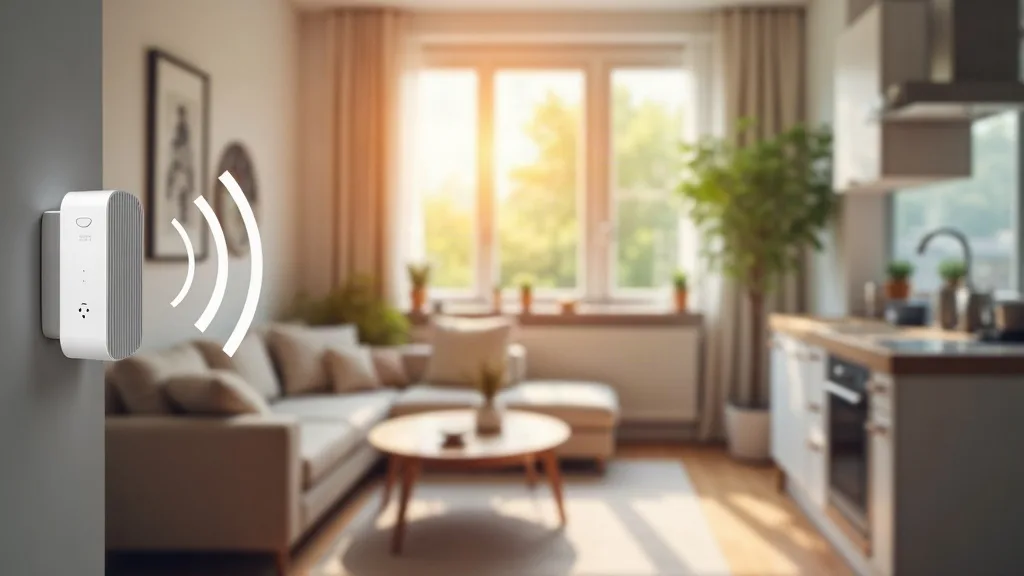
If your Wi-Fi extender makes everything feel slower, you're not imagining it. A lot of extenders quietly cut your speed in half, and most people never find out why. The good news is that with a few placement tweaks and setting changes, you can extend wifi range without losing speed, or at least get much closer to your router's real performance. This guide takes about 20 to 30 minutes and needs no technical background, just access to your extender and router settings.
What You'll Need
- Your Wi-Fi extender and router login details (usually printed on the device or in the app)
- A smartphone or laptop for testing speeds
- A free speed test app or website
- About 20 minutes to move the extender and retest a few times
Step 1: Understand Why Extenders Slow You Down
Before you start fiddling with settings, it helps to know what's actually happening. Most basic Wi-Fi extenders work on a single radio. That radio has to receive the signal from your router and then rebroadcast it to your devices using the same channel.
That means the extender is doing two jobs at once but only has time to do one properly. Think of it like a relay runner who has to catch their breath halfway through the race. This is why a lot of extenders roughly halve your available bandwidth, even if the signal bars on your phone look strong.
This is also the answer to "can wifi extenders make internet worse": yes, in certain setups they can. If the extender is too far from the router, poorly placed, or set up on a congested channel, you can end up with a weaker, slower connection than if you'd just used no extender at all in that spot.
Some extenders, particularly mesh systems, use a second radio dedicated to talking to the router. These are much better at keeping speeds up, so if you're shopping for a new setup, that's worth keeping in mind. For a fuller comparison of extenders, boosters, repeaters and access points, see Wi-Fi Extender vs Booster vs Repeater vs Access Point, or if you're budgeting, check out Wi-Fi extender costs and options.
Step 2: Check the Extender's Position
Placement is the single biggest factor in extender performance, and it's the first thing to fix if you're wondering why your wifi extender is slow.
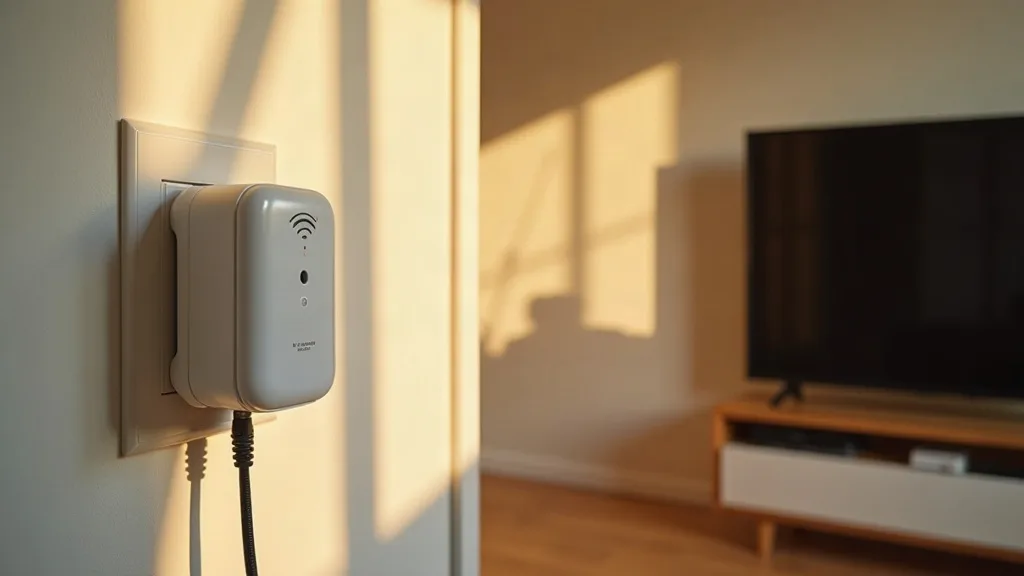
- Measure the signal halfway between your router and the dead zone you're trying to fix, not right next to the weak spot itself.
- Aim for a spot where the extender still shows two or three bars of signal from the router. If it's down to one bar, it's too far away.
- Avoid placing it near metal objects, mirrors, fish tanks, or thick brick walls, as these all block or reflect Wi-Fi signals.
- Keep it off the floor and away from other electronics like microwaves, baby monitors, and cordless phones, which can interfere with the signal.
- Try a higher spot, such as a shelf or windowsill, since Wi-Fi tends to spread better from an elevated position.
Small moves matter more than people expect. Shifting an extender by even a metre or two can noticeably change your speed test results.
Step 3: Pick the Right Channel and Band
Wi-Fi extenders often default to whatever channel is "automatic," which doesn't always mean "best."
- Log into your extender's app or web interface.
- Look for Wi-Fi settings, then find the channel selection for both the 2.4GHz and 5GHz bands.
- Use a Wi-Fi analyser app on your phone to see which channels your neighbours are using, then manually pick a quieter one.
- If your extender supports 5GHz, use it for devices that are close to the extender, since it's faster over short distances.
- Stick with 2.4GHz for devices further away or behind walls, as it travels further even though it's slower.
If you have a lot of neighbouring networks nearby, congestion on the 2.4GHz band is often the real culprit behind sluggish extender performance, not the extender itself.
Step 4: Update the Firmware
This step is easy to skip, but outdated firmware is a common reason extenders underperform or drop connections.
- Open the extender's app or web dashboard.
- Look for a section called "Firmware," "System," or "Update."
- Check for updates and install any that are available.
- Restart the extender after updating.
Manufacturers often release updates that fix exactly the kind of slowdowns and connection drops people complain about. It only takes a few minutes and can make a surprising difference.
Step 5: Match Your Extender's Name and Password to Your Router (or Separate Them)
There are two schools of thought here, and both can work depending on your situation.
Option A: Same network name. If your extender uses the same SSID and password as your router, devices will automatically hop between them. This is convenient, but it can backfire if your phone or laptop stubbornly sticks to the weaker signal instead of switching.
Option B: Separate network name. Giving the extender its own name, like "HomeWiFi_EXT," lets you manually choose which one to connect to. This is more hands-on, but it guarantees you know which network you're on, so you can check if the extender is actually helping or slowing things down.
If you're constantly annoyed by devices sticking to a weak signal, try Option B for a week and see if it helps.
Step 6: Reduce the Number of Hops
Every time your signal has to bounce from router to extender to extender again, you lose more speed. This is one of the most overlooked wifi extender tips and tricks.
- Avoid chaining two or more extenders together if possible.
- If you need to cover a large home, consider a mesh system instead, since mesh nodes communicate more efficiently with each other.
- Alternatively, look into wired backhaul options. Running an Ethernet cable to your extender removes one wireless hop entirely and can massively boost speed.
If running a cable sounds daunting, it's more doable than most people think. This guide on how to run Ethernet cable through your house walks through the practical options, including routes that avoid drilling through everything in sight.
Step 7: Consider Powerline Adapters as an Alternative
If your extender struggles no matter what you try, it might be worth switching to a different technology altogether. Powerline adapters use your home's electrical wiring to carry network data, which sidesteps a lot of the problems that come with wireless extenders, like interference and signal loss through walls.
They're not perfect for every home. Performance depends on your wiring's age and layout, and circuits on separate fuse boards can cause issues. Still, for many people they're a steadier alternative, especially in rooms where Wi-Fi signal just won't cooperate.
If you want to weigh up whether this suits your setup, this article on whether powerline adapters work, including their pros, cons and setup covers it in detail.
Step 8: Rethink Your Whole-Home Layout
Sometimes the issue isn't your extender at all, it's that one extender isn't enough, or it's in the wrong role entirely. If you're trying to cover a larger or oddly shaped home, it helps to plan coverage properly rather than bolting on one extender and hoping for the best.
This guide to extending Wi-Fi range to every room covers how to map out dead zones and decide where extenders, mesh nodes, or wired access points make the most sense. Taking a step back like this often solves problems that endless setting tweaks can't.
Step 9: Rule Out Interference Between Router and Extender
It's a fair question: can a wifi extender interfere with router performance? Yes, in some cases. If both devices are set to the same channel and placed too close together, they can actually compete with each other rather than cooperate.
- Keep at least a few metres between the router and extender.
- Make sure they're not set to identical channels on the same band.
- If you notice your main Wi-Fi getting worse after adding an extender, try temporarily unplugging the extender to confirm it's the cause.
- If performance improves with it unplugged, go back through the placement and channel steps above.
Step 10: Test, Adjust, Retest
Once you've made changes, don't just assume they worked. Test properly.
- Run a speed test standing right next to the extender.
- Run another in the room you actually use the connection in.
- Compare both to a speed test done right next to your main router.
- If the extender's numbers are still less than half of your router's, go back and adjust placement or channel settings again.
This is the only way how to make your wifi extender better in a way that's based on evidence rather than guesswork.
Common Mistakes to Avoid
- Placing the extender too far from the router, so it's stretching a weak signal instead of boosting a strong one
- Leaving both the router and extender on "automatic" channel settings, which can cause them to clash with neighbouring networks
- Chaining multiple extenders in a line, which compounds speed loss at every hop
- Never updating firmware, missing out on performance and stability fixes
- Assuming signal bars equal speed, when in reality a strong-looking signal can still be slow if the channel is congested
Conclusion
A sluggish extender usually comes down to a handful of fixable things: poor placement, channel congestion, outdated firmware, or simply asking one device to do too much. Work through the steps above and retest as you go, and you should be able to extend wifi range without losing speed in most rooms of your home. If you've tried everything and it's still unreliable, it might be time to look at a different approach entirely, whether that's a mesh system, powerline adapters, or a bit of wired Ethernet where you can manage it.
FAQ
Why is my Wi-Fi extender so much slower than my router?
Most basic extenders use a single radio to both receive and rebroadcast your Wi-Fi signal, which roughly halves the available bandwidth. Placement, channel congestion and outdated firmware can slow things down further.
Can a Wi-Fi extender make my internet worse?
Yes, if it's placed too far from the router, set to a clashing channel, or stuck with outdated firmware. In these cases, devices connected to the extender can end up slower than if they connected directly to the router's weaker edge signal.
Where is the best place to put a Wi-Fi extender?
Put it roughly halfway between your router and the area with weak signal, ideally somewhere elevated and away from thick walls, metal objects, and other electronics.
Should my extender use the same Wi-Fi name as my router?
It depends. The same name lets devices switch automatically, but some devices stick to a weaker signal instead of switching. A separate name gives you more control over which network you're using.
Is it better to use a mesh system instead of an extender?
For larger homes or multiple dead zones, mesh systems usually perform better because their nodes talk to each other more efficiently than traditional single-radio extenders.
Can I fix a slow extender without buying new equipment?
Often, yes. Repositioning the extender, choosing a quieter channel, updating firmware, and reducing the number of wireless hops can all improve performance without spending anything. If you're still stuck, check this guide on troubleshooting a Wi-Fi extender that isn't working properly for more targeted fixes.